

Acer Aspire Vero AV14-51 Manual
PDF manual · 79 Pages
English


Quick check
Incorrect answer, please try again.
Chat with your Acer Aspire Vero AV14-51 manual using AI
Get instant AI answers from your Acer Aspire Vero AV14-51 manual
Ask anything about the Acer Aspire Vero AV14-51. Answers come from this manual, with the pages they are based on.
Aspire Vero AV14-51 Maintenance Schedule
If storing the device for a long period, check the battery and charge it to approximately 50% capacity every 6 months.
Turn off the computer, disconnect the AC adapter, and wipe with a soft moist cloth. Do not use liquid or aerosol cleaners.
Free maintenance reminders
Timed to your purchase date. Always free, unsubscribe anytime.
Ask a Question
Do you recommend Aspire Vero AV14-51?
Yes NoFrequently Asked Questions
VeroSense is Acer’s power-management app offering ECO+, ECO, Balanced and Performance modes. It adjusts CPU power, screen brightness, fan speed and USB charging to extend runtime and optimize battery health for different usage scenarios.
Is this answer helpful?
Use Acer Care Center’s Recovery Management to create backups and perform restores. You can choose Cloud Download or Local reinstall and opt to keep personal files or remove everything. Follow on-screen prompts and ensure internet access for cloud recovery.
Is this answer helpful?
The AV14-51 includes USB Type-C (supports USB 3.2/Thunderbolt/DisplayPort on supported configs), USB 3.2 ports, HDMI and a 3.5 mm audio jack, allowing connection to monitors, projectors and audio devices. Capabilities depend on the specific model configuration.
Is this answer helpful?
Charge the battery between 0°C and 35°C, avoid constant charging when full, and store at ~50% if unused long-term. Use only Acer-approved chargers, stop charging at 100% where possible, and perform initial conditioning with two to three full charge/discharge cycles for new batteries.
Is this answer helpful?
Open Settings > Bluetooth & devices, toggle Bluetooth on, then click Add device and select the device to pair. Ensure the other device’s Bluetooth is discoverable and follow any on-screen PIN prompts for authentication.
Is this answer helpful?
When resetting the PC via Recovery Management you can choose Keep my files, which reinstalls Windows and removes apps but retains personal files. Always back up important data before recovery actions to prevent accidental loss.
Is this answer helpful?
Visit Acer support, search by serial number, SNID or model to access Drivers and Manuals. You can also download the Acer identification tool which detects serial details automatically for precise support downloads.
Is this answer helpful?
Advantages and Disadvantages
Advantages

- Sustainable build using post-consumer recycled plastics and eco-focused features.
- Flexible connectivity: USB-C with Thunderbolt/DisplayPort support, HDMI and multiple USB ports.
- VeroSense™ energy modes and optimized charging extend battery life and runtime.
- Built-in security: fingerprint reader, BIOS passwords and Kensington lock slot.
- Comprehensive support utilities: Acer Care Center for backups, recovery and driver management.
Disadvantages

- Battery care requires user attention (conditioning, temperature limits) to maximize lifespan.
- Advanced features and exact specs may vary by model and OS version.
- Some software features (Acer apps) may differ or be unavailable depending on configuration.
- Performance is balanced for efficiency; high-end workloads may need stronger hardware.
- Recovery and BIOS operations can be complex for inexperienced users.
Product Specification
Type
Notebook
Display
14", 1920x1080 (FHD), 16:9, 157ppi, 60Hz, non-glare (matte), IPS, 100% sRGB
SSD
512GB M.2 PCIe
HDD
N/A
Flash
N/A
Operating System
Windows 11 Home
Ports
1x USB-A 3.0 (5Gb/s, BC), 1x USB-A 3.0 (5Gb/s), 1x Thunderbolt 4 (40Gb/s, PD), 1x HDMI 2.0, 1x 3.5mm jack, 1x RJ-45 1Gb LAN, 1x DC-In barrel jack (power connector)
Authentication
Fingerprint reader (touchpad), TPM 2.0
Camera
2 Megapixel
Optical Drive
N/A
Battery
built-in, Li-Ion, 4 cells, 56Wh, 11h runtime (MobileMark 2018)
Power Supply
1x USB-C power plug (65W)
Weight
3.31 lb
Dimensions
12.94x8.80x0.70in (WxDxH)
Warranty
two years
USB notation
Link
Product Description
Acer Aspire Vero AV14-51 — Eco-conscious everyday laptop
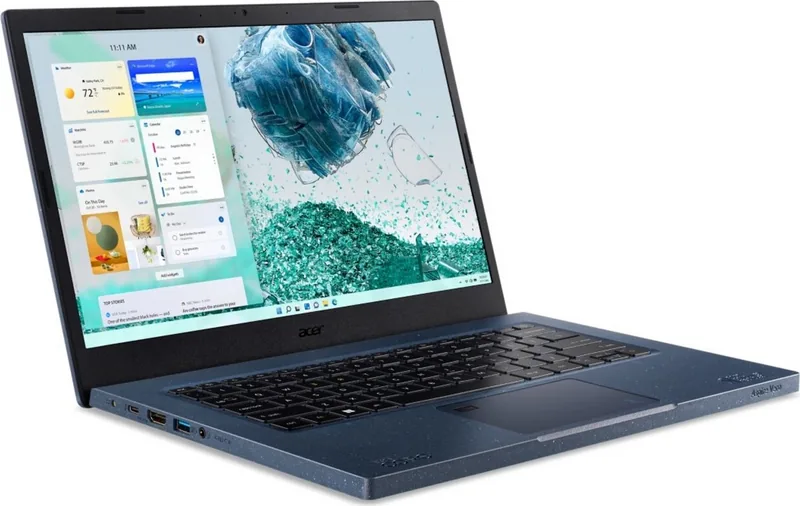
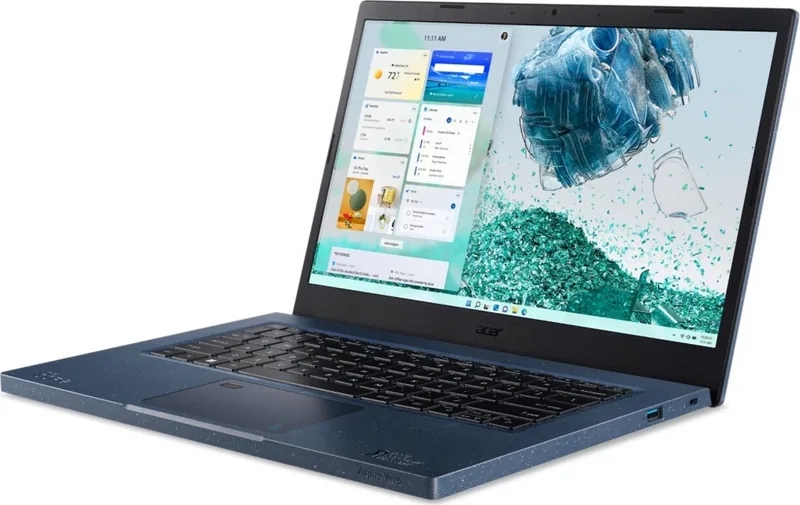
The Acer Aspire Vero AV14-51 blends sustainable design with practical features for everyday users. Built around Acer’s Vero ethos, this 14-inch notebook prioritizes recyclable materials, energy efficiency and user-friendly tools like VeroSense™ to manage power profiles and extend battery life. It suits students, remote workers and eco-minded buyers who want a capable, portable machine without sacrificing environmental responsibility.
Design and build
The AV14-51 uses post-consumer recycled plastics in its chassis and packaging, reducing environmental impact while keeping the laptop lightweight and durable. Ports include USB Type-C (with Thunderbolt and DisplayPort support on some configs), USB 3.2, HDMI and a 3.5 mm audio jack, offering flexible connectivity for peripherals and external displays.
Performance and battery
Configured with modern Intel processors and fast storage options, the Aspire Vero balances everyday productivity with smooth multitasking. VeroSense™ provides four performance modes—ECO+, ECO, Balanced and Performance—so you can prioritize battery life or raw performance on demand. Battery conditioning guidance and optimized charging options help preserve longevity.
Display, input and multimedia
A crisp display and integrated webcam make the AV14-51 a solid choice for video calls and media consumption. The Precision Touchpad supports multi-finger gestures for intuitive navigation, while the keyboard includes hotkeys, backlight control and a fingerprint reader for Windows Hello login and quick, secure access.
Software and support
The laptop ships with Acer utilities like Quick Access and Acer Care Center for system tuning, backups and recovery. Clear instructions for creating backups, resetting the PC, and saving wireless/LAN drivers simplify maintenance. Built-in guidance on Bluetooth pairing, Wi‑Fi setup and HDMI output makes day-to-day use straightforward.
Safety, maintenance and longevity
Acer provides thorough guidance on battery care, safe charging temperatures, and proper cleaning routines. The manual emphasizes using certified chargers, ventilated charging environments, and periodic battery conditioning to maximize lifespan. Security features include BIOS passwords, Kensington lock support and biometric unlock.
Notes
- VeroSense™ helps conserve energy and offers optimized battery charging to extend cell life.
- Precision Touchpad supports one- to four-finger gestures and custom sensitivity settings.
- Recovery tools in Acer Care Center enable cloud or local reinstall and selective file retention during resets.
Search for 67,706 Manuals online


Type-in Brand or Model