
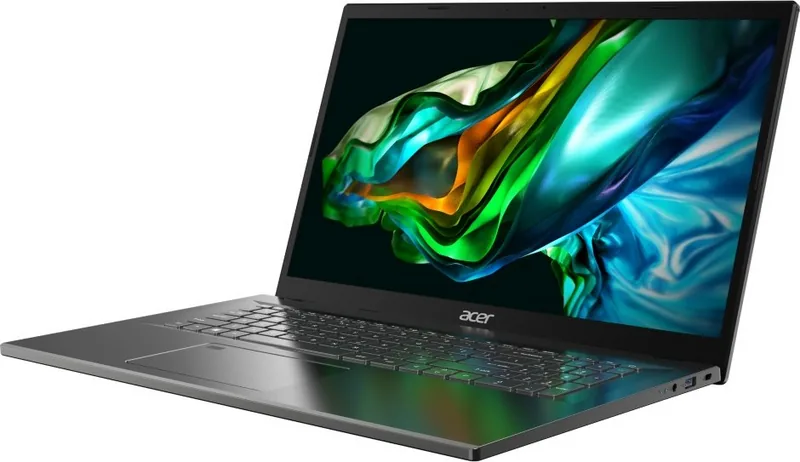
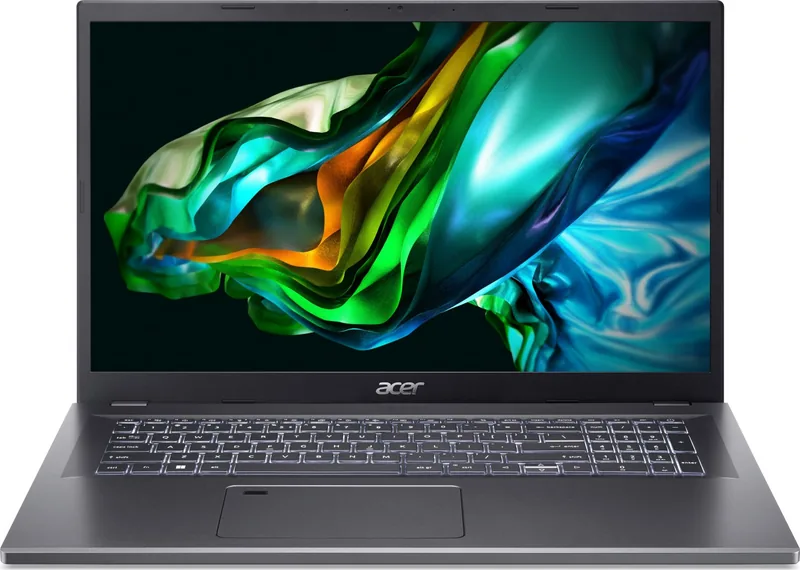
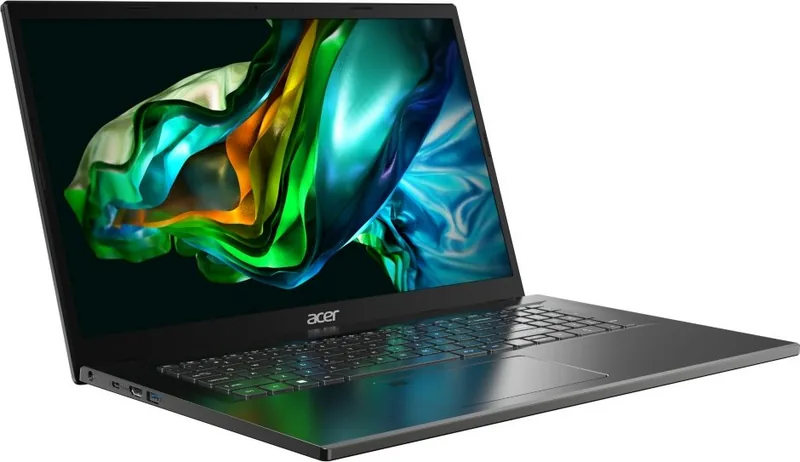
Acer Aspire 5 A517-58M Manual
PDF manual · 75 Pages
English


Quick check
Incorrect answer, please try again.
Chat with your Acer Aspire 5 A517-58M manual using AI
Get instant AI answers from your Acer Aspire 5 A517-58M manual
Ask anything about the Acer Aspire 5 A517-58M. Answers come from this manual, with the pages they are based on.
Ask a Question
Do you recommend Aspire 5 A517-58M?
Yes NoFrequently Asked Questions
Open Windows Settings > Bluetooth & devices, enable Bluetooth, click Add device, select the device from the list and follow the on-screen pairing code prompts. Ensure the other device's Bluetooth is discoverable.
Is this answer helpful?
Use Acer Care Center or Windows Settings > System > Recovery. You can Reset this PC and choose Keep my files (reinstalls Windows but preserves personal files) or Remove everything (full reset). Options include Cloud download or Local reinstall; follow the on-screen steps and back up data first.
Is this answer helpful?
Optimize power settings, avoid excessive temperatures, remove unnecessary peripherals, use AC power when possible, and follow battery conditioning advice (fully charge/discharge two to three times initially). Stop charging when at 100% for long-term storage and keep storage charge around 50% if unused.
Is this answer helpful?
The laptop includes USB-A ports, a USB-C/Thunderbolt 4 port (supports DisplayPort and USB4), and an HDMI port for external displays. Thunderbolt 4 supports up to two 4K displays via compatible docks; specifics depend on configuration.
Is this answer helpful?
Restart the laptop and press F2 when the Acer logo appears to enter the BIOS. Navigate to Security, select Set Supervisor Password, enter a password to enable supervisor protection, then press F10 to save and exit.
Is this answer helpful?
Check power (battery or adapter), ensure the adapter is firmly connected, remove external USB devices, try waking from sleep with a key or the power button, and adjust brightness. If still dark, consult troubleshooting or service center guidance.
Is this answer helpful?
Open Acer Care Center > Recovery Management > Backup tab, choose Backup wireless and LAN drivers, select a folder to save the drivers and click OK. Use these files to reinstall network drivers after OS changes.
Is this answer helpful?
Advantages and Disadvantages
Advantages

- Large 17-inch display ideal for productivity and multimedia consumption.
- Thunderbolt 4 / USB4 Type-C port enables high-speed peripherals and dual 4K displays.
- Fingerprint reader for quick Windows Hello authentication and enhanced security.
- Comprehensive recovery and backup tools via Acer Care Center and Recovery Management.
- Precision Touchpad with multi-finger gestures and configurable sensitivity.
Disadvantages

- Integrated battery replacement requires authorized service, increasing repair complexity.
- Manual emphasizes temperature limits and charging care, indicating sensitivity to misuse.
- Larger size reduces portability compared with smaller ultraportables.
- Some advanced features (keyboard backlight, exact specs) vary by configuration.
- Restoring system may remove installed apps; backups are necessary before reset.
Product Specification
Type
Notebook
Display
17.3", 1920x1080 (FHD), 16:9, 127ppi, 60Hz, non-glare (matte), IPS
HDD
N/A
Flash
N/A
Ports
1x USB-A 3.0 (5Gb/s, BC), 1x USB-A 3.0 (5Gb/s), 1x Thunderbolt 4 (40Gb/s, PD), 1x HDMI 2.1, 1x 3.5mm jack, 1x DC-In barrel jack (power connection)
Wireless
Wi-Fi 6E (WLAN 802.11a/b/g/n/ac/ax), Bluetooth 5.2
Camera
2 Megapixel
Optical Drive
N/A
Power Adapter
1x barrel plug (65W)
Features
Security lock (Kensington Security Slot)
Weight
4.61 lb
Color
grey, Manufacturer designation: Steel Gray
Warranty
two years (send-in)
USB Notation
Link
Product Description
Acer Aspire 5 A517-58M — Practical Guide and Overview
The Acer Aspire 5 A517-58M is a 17-inch productivity laptop designed for everyday use, blending a large display, modern connectivity and practical features for students, remote workers and home users. With support for Thunderbolt 4 and USB-C, HDMI output, an integrated fingerprint reader for Windows Hello, and a full-size keyboard with a numeric keypad, this model targets users who need a roomy screen and versatile ports without sacrificing portability.
Design and key features
The A517-58M presents a conventional clamshell design with a spacious display, built-in stereo speakers and a comfortable keyboard with backlight options (depending on configuration). The chassis includes vents and cooling fans on the underside and rear, and a Kensington-compatible security slot for physical protection. The laptop houses multiple USB-A ports, a USB-C/Thunderbolt 4 port with DisplayPort support, and an HDMI port for connecting external displays.
Security and convenience are covered by a fingerprint sensor for quick Windows Hello logins and BIOS password options (Supervisor/User/Password on Boot) for added protection. For video calls and recordings, an integrated webcam and dual microphones are included; an activity LED indicates camera use.
Performance and battery
Equipped to support contemporary processors and fast I/O, this Aspire 5 model emphasizes balanced performance: responsive everyday computing, multimedia playback, and light productivity tasks. Thunderbolt 4 and USB4-capable Type-C ports enable high-speed peripherals and external displays (up to two 4K via compatible docks). Battery care guidance highlights charging best practices, recommended storage states, and temperature limits to maximize lifespan; the manual advises conditioning a new battery with several full charge/discharge cycles.
Usability and software
Windows 11 features such as Quick Settings, Task View, Widgets and Precision Touchpad gestures are fully supported, with multi-finger gestures for navigation and search. The Acer Quick Access tool provides Bluelight Shield options to reduce blue light emission across multiple reduction modes. Acer Care Center and Recovery Management help create backups, save drivers, and reset or restore the system with cloud or local reinstall options.
Connectivity and networking
Wireless connectivity includes Wi‑Fi and Bluetooth with pairing instructions and quick settings control. The manual covers connecting to wireless networks, managing flight mode, and troubleshooting network issues. For wired setups, Ethernet or LAN driver backup methods are documented.
Maintenance and safety
Extensive safety and maintenance guidance covers cleaning, proper handling, power adapter precautions, safe battery charging and replacement procedures (internal battery replacement only by authorized service). Troubleshooting, BIOS access (F2), common error messages and international warranty/repair guidance are included to help users resolve issues safely.
Notes
- Supports Thunderbolt 4, USB4 and HDMI for flexible display options.
- Includes fingerprint login and BIOS password controls for security.
- Detailed battery care recommendations to extend service life.
- Acer Care Center provides backup, driver save, and recovery tools.
- Precision Touchpad supports multi-finger gestures for productivity.
Search for 67,706 Manuals online


Type-in Brand or Model