
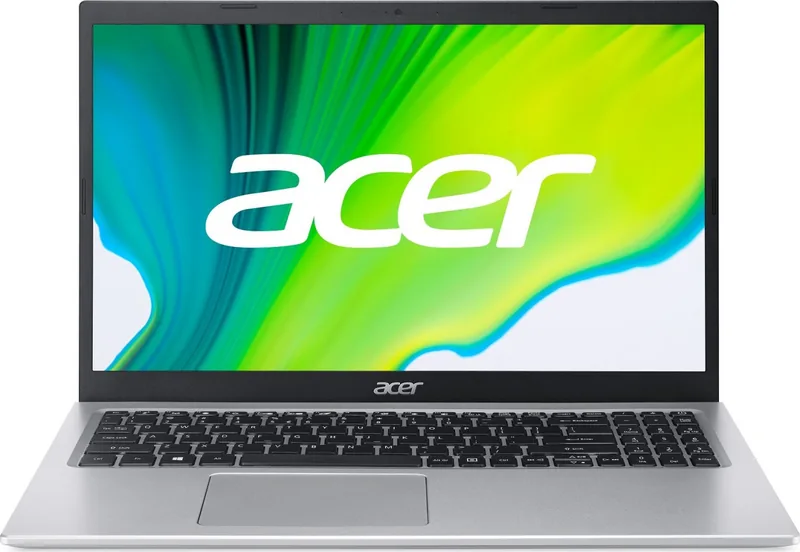
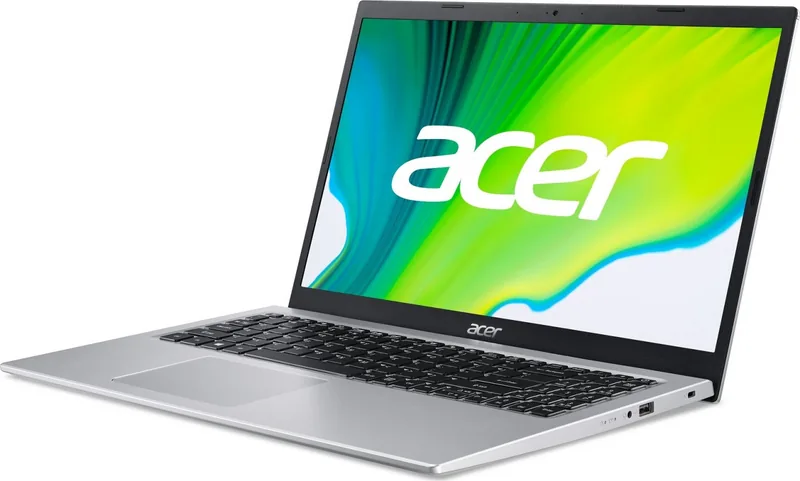
Acer Aspire 5 A515-56 Manual
PDF manual · 86 Pages
English


Quick check
Incorrect answer, please try again.
Chat with your Acer Aspire 5 A515-56 manual using AI
Get instant AI answers from your Acer Aspire 5 A515-56 manual
Ask anything about the Acer Aspire 5 A515-56. Answers come from this manual, with the pages they are based on.
Aspire 5 A515-56 Maintenance Schedule
If the device is stored for a long period, check the battery every 6 months and charge it to approximately 50% capacity to prevent deformation or damage.
Turn off the computer and disconnect the AC adapter. Use a soft, moist cloth to clean the surface. Do not use liquid or aerosol cleaners.
Free maintenance reminders
Timed to your purchase date. Always free, unsubscribe anytime.
Ask a Question
Do you recommend Aspire 5 A515-56?
Yes NoFrequently Asked Questions
The information covers the Aspire 5 A515-56 family, including A515-56, A515-56G, and A515-56S configurations. Hardware features can vary between individual versions, so available options such as a fingerprint reader or keyboard backlight may differ.
Is this answer helpful?
The laptop supports common accessories through USB ports, USB Type-C, HDMI, Ethernet, and the audio combo jack. You can connect storage drives, a mouse, keyboard, monitor, headset, speakers, and wired network cable. USB Type-C supports data transfers up to 5 Gbps.
Is this answer helpful?
Select the network icon in the Windows notification area, choose your Wi-Fi network, select Connect, and enter the network password if requested. Ensure wireless networking is enabled and airplane mode is turned off before attempting to connect.
Is this answer helpful?
Yes, Bluetooth can be used with compatible devices such as headphones, keyboards, phones, and tablets. Enable Bluetooth in Windows Settings, choose Add Bluetooth or other device, select the device from the list, and complete any pairing code request.
Is this answer helpful?
Use Acer Bluelight Shield through the Quick Access application. It provides low, medium, high, and long-hour reduction modes to lower blue-light emissions from the display. Choose a mode based on your comfort and the length of your screen session.
Is this answer helpful?
First, confirm that the power adapter is firmly connected to both the laptop and a working outlet. If using battery power, connect the adapter and allow a few minutes of charging. Disconnect attached USB storage devices, then restart if necessary.
Is this answer helpful?
Advantages and Disadvantages
Advantages

- Versatile connectivity includes USB Type-C, multiple USB ports, HDMI, Ethernet, and a combined headset jack.
- Precision touchpad supports intuitive multi-finger gestures for navigation, zooming, task view, and window switching.
- Useful security tools include BIOS passwords, boot protection, a Kensington lock slot, and optional fingerprint sign-in.
- Recovery options support file backups, driver backups, recovery media creation, and Windows reset functions.
- Bluelight Shield modes can help improve viewing comfort during extended screen time.
Disadvantages

- USB Type-C is limited to USB 3.2 Gen 1 speeds up to 5 Gbps; advanced functions such as Thunderbolt video are not indicated.
- Fingerprint reader and keyboard backlight availability depends on the exact configuration.
- The integrated battery is not intended for user replacement and requires authorized service.
- Recovery procedures can remove installed applications, and a full reset can erase personal data.
- The included Windows guidance is focused on Windows 10, which may differ from newer operating system versions.
Product Specification
Type
Laptop
HDD
N/A
Flash
N/A
Ports
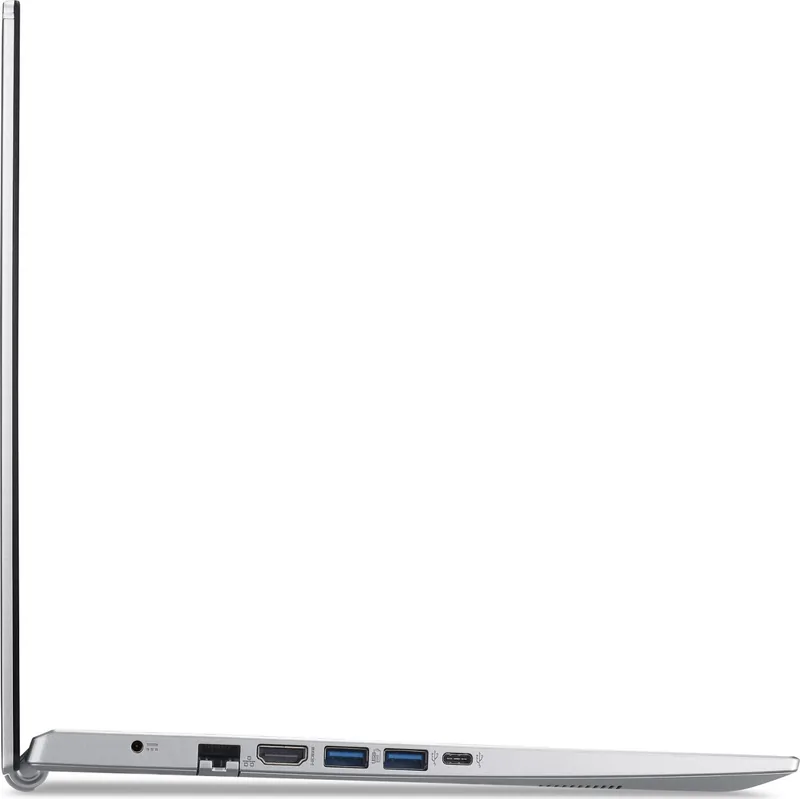
1x USB-C 3.0 (5 Gb/s), 2x USB-A 3.0 (5 Gb/s), 1x USB-A 2.0 (480 Mb/s), 1x HDMI 2.0, 1x 3.5 mm audio jack, 1x RJ-45 1 Gb LAN (Intel I219-LM), 1x DC-in barrel jack (power connector)
Camera
0.9 megapixel
Optical drive
N/A
Power adapter
1x barrel plug (45 W)
Weight
3.64 lb
Dimensions
14.31 x 9.39 x 0.71 in (W x D x H)
Warranty
Two years
USB notation
Link
Product Description
Acer Aspire 5 A515-56 Manual: A Practical Laptop for Everyday Productivity
The Acer Aspire 5 A515-56 is designed for users who want a dependable notebook for work, study, home administration, and everyday entertainment. Its balanced feature set combines a comfortable keyboard, a responsive precision touchpad, useful connectivity, and practical security tools in a portable format. Whether you are writing reports, attending video calls, managing files, or browsing the web, this Aspire 5 model is built to handle common daily tasks with confidence.
Connectivity for a Flexible Workspace
A strong selection of ports makes the laptop easy to integrate into a home or office setup. It includes USB ports for accessories and storage devices, a USB Type-C port with USB 3.2 Gen 1 transfer speeds up to 5 Gbps, HDMI for an external display, Ethernet for wired networking, and a combined audio jack for headphones or a headset. This variety supports convenient connections to monitors, keyboards, external drives, speakers, and network equipment.
Wireless options add further flexibility. Wi-Fi makes it simple to join available networks, while Bluetooth supports compatible headphones, phones, keyboards, and other short-range devices. The dedicated airplane mode shortcut offers a quick way to control wireless connections when needed.
Comfortable Daily Operation
The Acer Aspire 5 A515-56 Manual highlights features that help streamline everyday use. The precision touchpad supports multi-finger gestures for scrolling, zooming, switching windows, opening search, and viewing tasks. The keyboard includes shortcut controls for brightness, volume, display switching, sleep mode, touchpad control, and media playback. Depending on configuration, the notebook may also offer a fingerprint reader for Windows Hello sign-in.
The display includes Acer Bluelight Shield settings, which reduce blue-light emissions through several selectable modes. This can be helpful during long reading, studying, and document-editing sessions. An integrated webcam and microphones support video communication, while stereo speakers provide audio for calls and media.
Protection, Power, and Recovery
Security options include a Kensington lock slot, BIOS-level passwords, boot passwords, and optional fingerprint authentication. The integrated lithium battery is designed for mobile use and can be charged while the computer is in operation. For best long-term battery care, avoid extreme temperatures and repeated charging after the battery has already reached full capacity.
Built-in recovery features help users back up personal files, preserve wireless and LAN drivers, create a recovery drive, and reset Windows when serious software issues occur. The system can be restored while keeping personal files or fully reset when a clean start is required.
Note: Exact features may vary by configuration, including the fingerprint reader, keyboard backlight, and wireless capabilities. Use approved charging equipment and keep ventilation openings clear during operation.
Search for 67,706 Manuals online


Type-in Brand or Model