
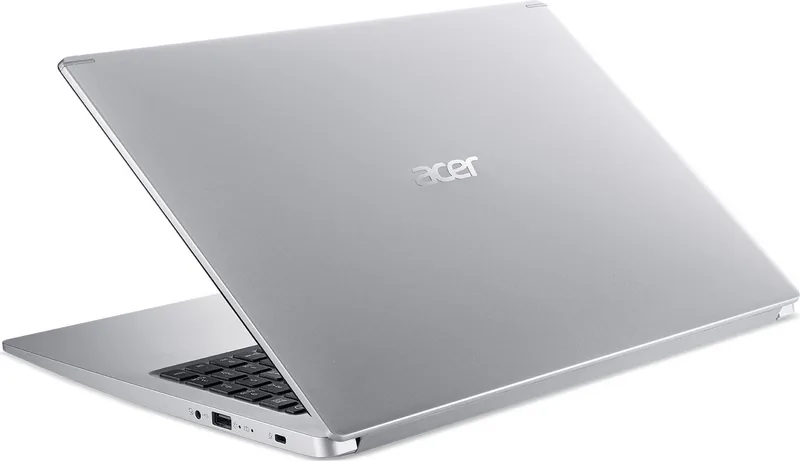
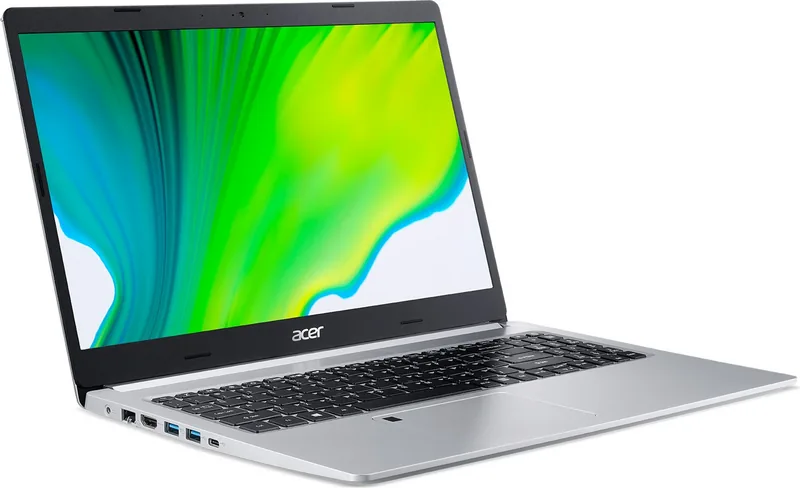
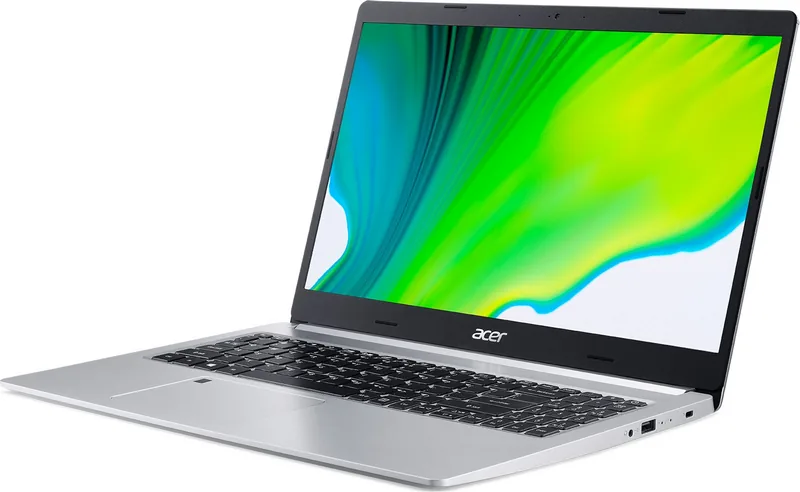
Acer Aspire 5 A515-44 Manual
PDF manual · 69 Pages
English


Quick check
Incorrect answer, please try again.
Chat with your Acer Aspire 5 A515-44 manual using AI
Get instant AI answers from your Acer Aspire 5 A515-44 manual
Ask anything about the Acer Aspire 5 A515-44. Answers come from this manual, with the pages they are based on.
Ask a Question
Do you recommend Aspire 5 A515-44?
Yes NoFrequently Asked Questions
You can register using Windows OS during startup or visit www.acer.com/register-product. Ensure you are connected to the internet and log in with your Acer ID to verify product data.
Is this answer helpful?
Stop charging at 100 percent to avoid damage. Do not charge above 35 Celsius. Avoid extreme cold or heat. Condition new batteries by fully charging and discharging three times. Keep the device in a dry, ventilated area.
Is this answer helpful?
One finger moves the cursor. Two fingers scroll or right click. Three fingers open search or task views. Four fingers access the Action Center. Adjust sensitivity in Bluetooth and Device settings.
Is this answer helpful?
Open Start menu and go to Recovery Management. Select Restore then Choose an option. Click Reset PC and select Keep my files. Choose Cloud download or Local reinstall and confirm.
Is this answer helpful?
Yes, enable Bluetooth in settings then click Add device. Pair the device once to authenticate. Subsequent connections require only activating the adapter. Ensure both devices are within range.
Is this answer helpful?
Check if brightness is too low. Verify the device is not in sleep mode. Ensure power is connected. If connected to an external monitor switch display settings back to the main screen.
Is this answer helpful?
Always eject external drives before removal. Click the USB symbol in the taskbar and select Eject. This prevents data loss or damage to the peripheral.
Is this answer helpful?
Advantages and Disadvantages
Advantages

- Precision Touchpad offers fluid navigation and gesture support for productivity.
- Integrated Bluelight Shield reduces eye strain during long usage sessions.
- Fingerprint reader enables secure and fast login via Windows Hello.
- Comprehensive Recovery Management tools allow for safe system backups.
- Multiple connectivity options including USB-C, HDMI, and Ethernet ports.
Disadvantages

- Built-in battery cannot be replaced by the user easily.
- Battery lifecycle may shorten if charged constantly to 100 percent.
- System lock triggers after three failed password attempts.
- Public WiFi requires VPN to prevent Man-in-the-Middle attacks.
- Fast start-up feature consumes some power even when disabled.
Product Specification
Type
Laptop
Display
15.6", 1920x1080 (FHD), 16:9, 141ppi, 60Hz, non-glare (matte), IPS
Hard Drive
N/A
SSD
N/A
Ports
1x USB-C 3.0 (5Gb/s, PD 15W), 1x USB-A 3.0 (5Gb/s, BC), 1x USB-A 3.0 (5Gb/s), 1x USB-A 2.0 (480Mb/s), 1x HDMI, 1x 3.5mm Jack, 1x RJ-45 1Gb LAN, 1x DC Barrel Jack (AC Inlet)
Wireless
Wi-Fi 5 (WLAN 802.11a/b/g/n/ac, 2x2), Bluetooth 4.0
Camera
0.9 Megapixel
Optical Drive
N/A
Battery
Sealed, Li-Ion, 4-Cell, 48Wh, 3220mAh, 10h Battery Life
Power Adapter
1x DC Barrel Plug (45W)
Weight
3.97 lbs
Dimensions
14.29 x 9.88 x 0.70 inches (WxDxH)
Warranty
2 Years
USB Terminology
Link
Product Description
Welcome to Your New Acer Experience
Thank you for selecting this notebook. This summary is derived from the official Acer Aspire 5 A515-44 Manual. It outlines critical steps for setup, maintenance, and security to ensure your device lasts longer. You will need this information to get the most out of your hardware.
Care and Battery Safety
Maintaining the computer is essential for longevity. Avoid direct sunlight and heat sources like heaters. Keep the unit away from moisture and magnetic fields. Temperatures should remain between 0 and 50 degrees Celsius. The lithium battery requires specific handling. Stop charging when it reaches one hundred percent regularly. Do not expose to temperatures over 35 degrees Celsius while charging. Never disassemble the battery. If leaking occurs wash skin and seek medical help. Do not leave batteries fully discharged for long periods. Condition new batteries by charging and discharging three times fully. This ensures maximum capacity and effective usage time. Avoid short-circuiting the battery terminals with metal objects.
System Setup and Precision Features
The Windows Desktop organizes apps efficiently. Locate apps by clicking the search symbol. You can pin favorites to the Start screen or taskbar. The Precision Touchpad offers fluid navigation. Move the cursor with one finger. Double tap to click. Use two fingers to scroll or right click. Three fingers open search or task views. Adjust sensitivity in Bluetooth and device settings areas. Reset to original settings if performance degrades using the Reset PC option. Keep the touchpad dry and clean for best response.
Security and Recovery Options
Protect your investment with password locks. Set a User Password to prevent unauthorized boot access. A Supervisor Password secures the BIOS utility. The fingerprint reader allows easy login via Windows Hello. Reset the PC using Recovery Management if issues arise. You can keep files or remove everything. Back up files using OneDrive syncing options regularly. Secure connections with Norton security software included. Verify BIOS settings are correctly enabled for recovery functions if needed. Do not guess passwords more than three times to avoid system lock.
Connectivity and Internet Security
Connect via Wireless LAN or Ethernet cables. Enable network sharing for faster access. Use Bluetooth to pair audio devices. Secure connections with Norton security software. Avoid phishing emails and suspicious links. Install Windows updates immediately. Use Bluelight Shield to reduce eye strain during long hours. Transport the computer in a protective bag when traveling. When moving the device within a building, close the screen to activate sleep mode. Carry the power adapter if the battery is low. Pack a protective case to prevent sliding inside luggage. Check all ports for USB and HDMI compatibility before usage.
Final Steps
Register your product online to verify data. Visit support pages for drivers and manuals. Keep the Kaufdatum and Serial number handy for warranty claims. Contact a service center if problems persist. Always eject USB devices safely to prevent data loss. Follow the instructions provided in the Acer Aspire 5 A515-44 Manual closely. Troubleshoot issues like black screens by checking power and brightness settings first. Ensure sound is not muted in taskbar settings if there is no audio. Verify cables are secure. Unplug USB drives if boot fails. Contact support if internal keyboard fails. These practices keep your system smooth and secure.
Search for 67,706 Manuals online


Type-in Brand or Model