
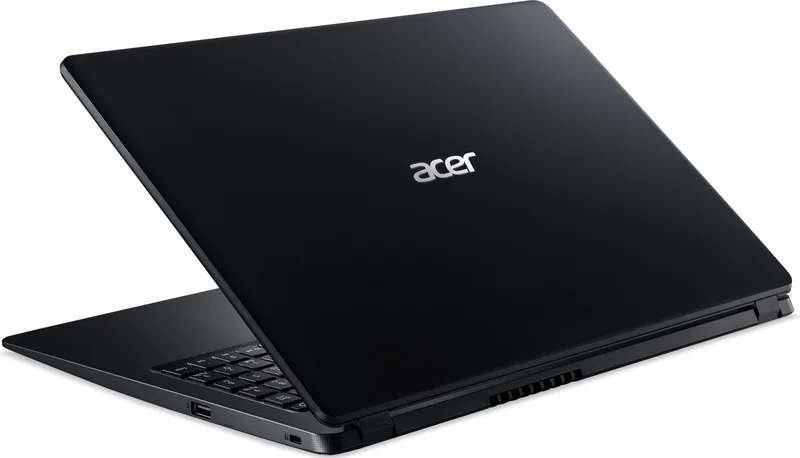

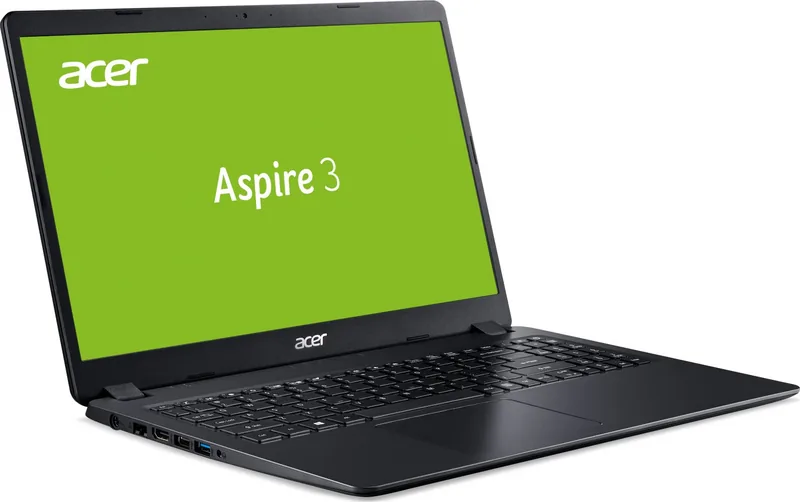
Acer Aspire 3 A315-56 Manual
PDF manual · 69 Pages
English


Quick check
Incorrect answer, please try again.
Chat with your Acer Aspire 3 A315-56 manual using AI
Get instant AI answers from your Acer Aspire 3 A315-56 manual
Ask anything about the Acer Aspire 3 A315-56. Answers come from this manual, with the pages they are based on.
Aspire 3 A315-56 Maintenance Schedule
Before first use or after long storage, fully charge and discharge the battery three times to ensure maximum charge capacity.
If moving between environments with a temperature difference greater than 10 degrees Celsius, allow the computer to reach room temperature and check the screen for moisture before turning it on.
Free maintenance reminders
Timed to your purchase date. Always free, unsubscribe anytime.
Ask a Question
Do you recommend Aspire 3 A315-56?
Yes NoFrequently Asked Questions
Use Recovery Management in Care Center. Select Restore tab. Choose Keep my files or Remove everything. Follow on-screen instructions to reinstall Windows safely.
Is this answer helpful?
Go to Settings in Start menu. Select Devices. Toggle Bluetooth to enable. Click Add Bluetooth or other device to pair.
Is this answer helpful?
The power meter indicates current charge. Warning appears when battery is low. Plug in AC adapter immediately to save files and avoid shutdown.
Is this answer helpful?
Set a User Password and Supervisor Password. Use the Kensington lock slot with a compatible security lock cable for physical protection.
Is this answer helpful?
Ensure Internet Service Provider is active. Use Wi-Fi hotkey or Ethernet cable. Enter password for wireless networks if required.
Is this answer helpful?
Reduces blue-light emissions from the screen. Toggle in Quick Access menu to protect eyes from strain during extended use.
Is this answer helpful?
Yes, use the Display toggle hotkey. Switches between screen, monitor, and both. Adjust resolution in display settings.
Is this answer helpful?
Advantages and Disadvantages
Advantages

- Long battery life for daily usage
- Precision Touchpad supports gestures for multitasking
- Security lock slot protects against theft
- Recovery tools reset system to factory defaults
- Fast connectivity with USB 3.1 and HDMI ports
Disadvantages

- Battery needs conditioning for first charge
- External adapter required for charging
- Keyboard backlight varies by specific model configuration
- Temperature limits restrict usage in extreme environments
- No dedicated graphics mentioned for heavy gaming tasks
Product Specification
Type
Notebook
Flash Storage
N/A
Ports
1x USB-A 3.0 (5Gb/s), 2x USB-A 2.0 (480Mb/s), 1x HDMI, 1x 3.5mm Jack, 1x RJ-45 1Gb LAN (Intel I219-LM), 1x DC-In Power Jack (Power Input)
Wireless
Wi-Fi 5 (WLAN 802.11a/b/g/n/ac), Bluetooth 5.0
Optical Drive
N/A
Power Adapter
1x DC Plug (45W)
Features
Security Lock (Kensington Security Slot)
Weight
4.19 lbs
Dimensions
14.31 x 9.74 x 0.79 in (WxDxH)
Warranty
Two years (Mail-in)
USB Notation
Link
Product Description
Getting Started with Your New Notebook
Welcome to the world of portable computing with this powerful device designed for your needs. Before diving into performance, understanding the essentials ensures longevity and optimal performance for years ahead. The Acer Aspire 3 A315-56 Manual provides insights into setup and maintenance without overwhelming technical jargon for new users or professionals alike. First, locate the power button and charge the battery fully before initial use to ensure stability and safety during operation. Conditioning the battery improves lifespan significantly according to manufacturer guidelines found in the text. Ensure all initial settings are configured for your preference before beginning regular work cycles. Note: Regular cleaning extends device lifespan.
Exploring the Hardware
The chassis features various ports including USB 3.1 Gen 1 and HDMI for display connectivity options in modern settings. A Kensington lock slot secures the device in public spaces effectively against theft. Screen quality is optimized for daily tasks with adequate resolution for productivity and media consumption. The keyboard layout includes standard lock keys and special function keys for media control and brightness adjustment quickly. Navigation relies on the Precision Touchpad which supports gesture controls for enhanced productivity and multitasking capabilities efficiently. This ensures smooth operation when connecting external monitors or storage devices for expanded use.
Connectivity and Security
Connecting to wireless networks is straightforward with built-in Wi-Fi capabilities for modern workflows. Enable Bluetooth settings to pair headphones or peripherals for audio streaming and data transfer securely. Network cards support both LAN and Wi-Fi for versatile internet access in various locations worldwide. Security features include password protection and BIOS settings to safeguard personal data and business information from unauthorized access. Protecting data involves regular backups using recovery management tools found within the system software.
Power Management and Travel
Battery life varies based on usage patterns and background applications running simultaneously. Saving power settings help extend operational time away from the charger during long trips or meetings. Travel tips suggest removing accessories before transport to prevent damage to ports or screens accidentally. Keep temperatures within recommended ranges to prevent physical damage to the internal components and logic board.
Important Considerations
Always verify updates through the support website for latest drivers and security patches. Regular servicing prevents dust buildup inside the cooling vents which affect internal temperatures. Use approved adapters to avoid electrical hazards and equipment damage related to power surges. Security software protects against online threats like malware and phishing attempts from bad actors. Recovery options allow resetting the system to factory defaults if issues arise unexpectedly during use. Enjoy your computing journey with proper care and attention to detail for best results always.
Search for 67,706 Manuals online


Type-in Brand or Model