
Acer Aspire 3 A315-24P Manual
PDF manual · 74 Pages
English


Quick check
Incorrect answer, please try again.
Chat with your Acer Aspire 3 A315-24P manual using AI
Get instant AI answers from your Acer Aspire 3 A315-24P manual
Ask anything about the Acer Aspire 3 A315-24P. Answers come from this manual, with the pages they are based on.
Ask a Question
Do you recommend Aspire 3 A315-24P?
Yes NoFrequently Asked Questions
You can use Recovery Management via Start or Settings > System > Recovery. Choose Reset this PC and either keep your files or remove everything. Follow on-screen prompts to reinstall Windows and restore default settings.
Is this answer helpful?
Charging and discharging should occur between 0C and 35C. Do not charge constantly while at 100%. Store the device when not in use in a dry place at room temperature. Do not disassemble or puncture the battery.
Is this answer helpful?
Go to Settings > Accounts > Sign-in options. Select Windows Hello Fingerprint recognition and click Set up. Follow instructions to scan your finger multiple times until configuration is complete for unlocking the computer.
Is this answer helpful?
Yes, the USB Type-C port on the left view supports DisplayPort over USB-C. Ensure you use a certified power adapter or cable to achieve the best video and audio output quality for external screens.
Is this answer helpful?
Ensure Wi-Fi is turned on by default. Click the network icon in the notification area, select Manage Wi-Fi connections, choose your network from the list, and enter the password if required to establish the connection.
Is this answer helpful?
Check if power is supplied via the indicator light. Connect the AC adapter if using battery. Unplug USB storage devices and press Ctrl+Alt+Del to restart. If issues persist, contact an authorized service center.
Is this answer helpful?
Press the Windows key, go to Settings, and select Windows Update. Use Advanced options to configure settings for automatic updates and install any available patches to maintain security and performance.
Is this answer helpful?
Advantages and Disadvantages
Advantages

- High-speed USB Type-C ports support 10 Gbps transfer rates and video output.
- Fingerprint reader enables secure Windows Hello sign-ins for data protection.
- Bluelight Shield technology reduces blue light to protect eyes during long sessions.
- Recovery tools allow restoring the PC while keeping or removing personal files.
- Kensington lock slot provides physical security against theft in public spaces.
Disadvantages

- Battery lifespan decreases if charged constantly at 100% capacity without draining.
- Internal built-in battery cannot be replaced by the user without service.
- System performance degrades significantly if exposed to extreme outdoor temperatures.
- Using non-Acer charging equipment may void the warranty and damage the device.
- Sleep mode may eventually transition to deep sleep without regular wake-ups.
Product Specification
Type
Laptop
HDD
N/A
Flash Storage
N/A
Graphics
AMD Radeon 610M (iGPU), 2CU/128SP, 1.90GHz, Architecture "RDNA 2" (Mendocino)
Ports
1x USB-C 3.1 with DisplayPort (10Gb/s), 2x USB-A 3.0 (5Gb/s), 1x HDMI 2.1, 1x 3.5mm Jack, 1x DC-In Barrel Jack (Power Input)
Wireless
Wi-Fi 6 (WLAN 802.11a/b/g/n/ac/ax), Bluetooth 5.2
Authentication
N/A
Camera
0.9 MP
Optical Drive
N/A
Power Adapter
1x Barrel Jack (45W)
Features
Security Lock (Kensington Security Slot)
Weight
3.97 lbs
Dimensions
14.29 x 9.35 x 0.74 in (WxDxH)
Color
Silver, Manufacturer Name: Pure Silver
Warranty
2 years (Send-in)
USB Notation
Link
Product Description
Experience Seamless Productivity with the Acer Aspire 3 A315-24P
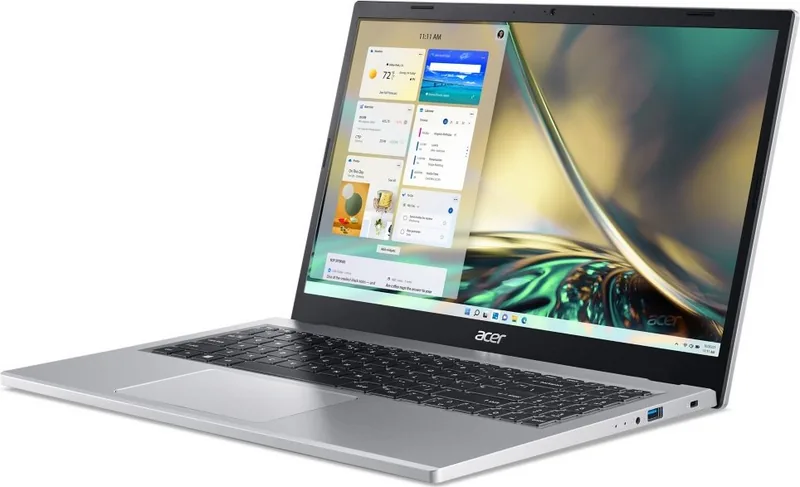
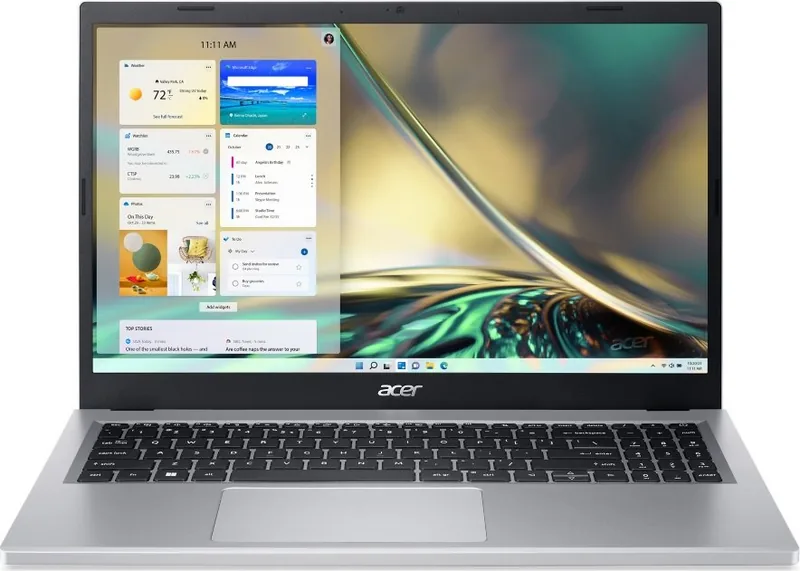
Owning a reliable laptop is essential for modern mobile computing needs. The Acer Aspire 3 A315-24P delivers a robust setup designed for daily tasks and professional environments alike. This notebook features a versatile screen view that supports both touch and non-touch options, ensuring a smooth visual experience for work or entertainment. Users appreciate the comprehensive keyboard layout which includes full-sized keys, a numeric keypad, and special function keys for quick adjustments like brightness and volume control.
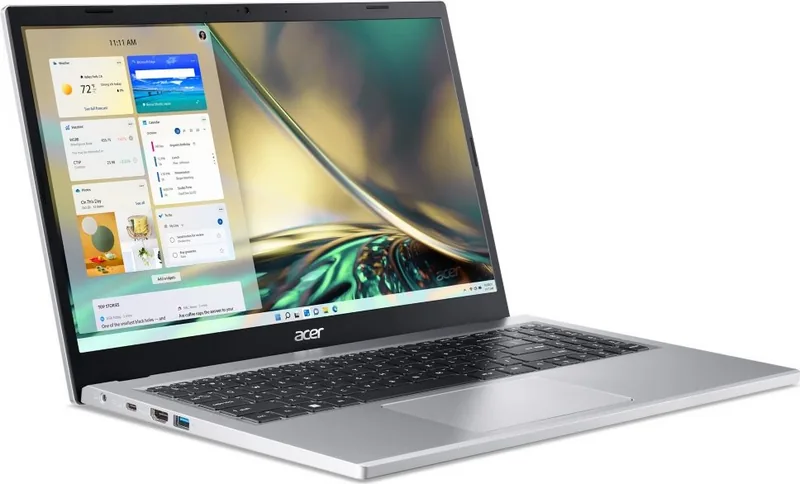
One of the standout aspects of this device is its connectivity options. The left view showcases USB Type-A and USB Type-C ports. The USB Type-C port supports transfer speeds up to 10 Gbps and even DisplayPort audio and video output. This flexibility allows users to connect high-definition monitors or fast storage devices easily. Additionally, the HDMI port ensures seamless digital audio and video connections for external displays without hassle. The right view also includes a Kensington lock slot for physical security.
Security remains a priority for modern users. The device includes a fingerprint reader compatible with Windows Hello for secure sign-ins. Password settings can be managed through the BIOS utility or directly within Windows settings to protect sensitive data. The Bluelight Shield technology also reduces blue light emissions to protect eyes during extended usage hours. Recovery tools allow users to reset the PC while keeping files or removing everything for a fresh start.
Battery performance is critical for mobility. The internal lithium-based battery allows for long use between charges. Guidelines suggest avoiding extreme temperatures to maintain battery health. Storing the product at room temperature and recharging when levels drop below 70% helps maximize lifespan. For travel, users are advised to disconnect external accessories and pack the unit in a protective case to prevent damage during transit. Cleaning should always involve turning off the device first.
Basic care involves regular cleaning with a soft moist cloth and avoiding submersion. Charging should occur in ventilated areas away from heat sources. The power management unit monitors system activity to conserve energy automatically. Whether connecting to a wireless network or using Bluetooth for peripherals, the setup integrates smoothly with Windows 11 interfaces. Touchpad gestures support multi-finger navigation for enhanced efficiency during operation. Internet security software is also bundled to protect against viruses.
Notes for Owners
- Ensure drivers are updated via the Acer support website.
- Use only Acer-approved adapters for safety.
- Back up files regularly using recovery management tools.
- Register the product at the official website for warranty support.
- Avoid exposing the computer to direct sunlight or moisture.
Search for 67,706 Manuals online


Type-in Brand or Model