
Logitech Wireless Desktop MK235, USB, DE Manual
PDF manual · 21 Pages
English



Advantages and Disadvantages
Advantages

- Simple plug-and-play setup via USB nano receiver
- Full-size DE keyboard with useful Fn hotkeys
- Reliable wireless connection with long battery life
- Compact mouse with middle-click and receiver storage
- Easy troubleshooting and reconnection utility support
Disadvantages

- No backlighting or premium media controls
- Hotkeys require Fn combinations, no dedicated keys
- USB hub connections may reduce reliability
- Middle-click behavior varies by application
- No rechargeable batteries included
Ask a Question
Frequently Asked Questions
You get a full-size DE-layout keyboard, a wireless mouse, a USB nano receiver, and batteries. Insert the batteries, plug in the receiver, switch on both devices, and you’re ready to use it.
Is this answer helpful?
Hold the Fn key and press the corresponding function key to launch browser, email, search, calculator, or control media (play/pause, next, previous, mute, volume). Utility keys include print screen, scroll lock, pause/break, and menu.
Is this answer helpful?
Check battery orientation or replace them, move the receiver closer, avoid USB hubs, remove metal obstructions, try a different surface for the mouse, and restart your computer. If needed, use Logitech’s Reconnection Utility.
Is this answer helpful?
Yes. Press the scroll wheel to perform a middle click. Note that behavior can vary depending on the software application you’re using.
Is this answer helpful?
No. It’s plug-and-play via the USB nano receiver. For pairing or connection issues, you can optionally use Logitech’s Reconnection Utility to restore the wireless link.
Is this answer helpful?
It may work, but performance can be less reliable. For best results, plug the nano receiver directly into a computer USB port, preferably close to the keyboard and mouse.
Is this answer helpful?
Use the on/off slider to power down when not in use, store the nano receiver in the mouse when traveling, and replace batteries promptly if performance becomes erratic.
Is this answer helpful?
Product Description

Logitech Wireless Desktop MK235, USB, DE Manual
A Reliable Wireless Combo for Everyday Productivity
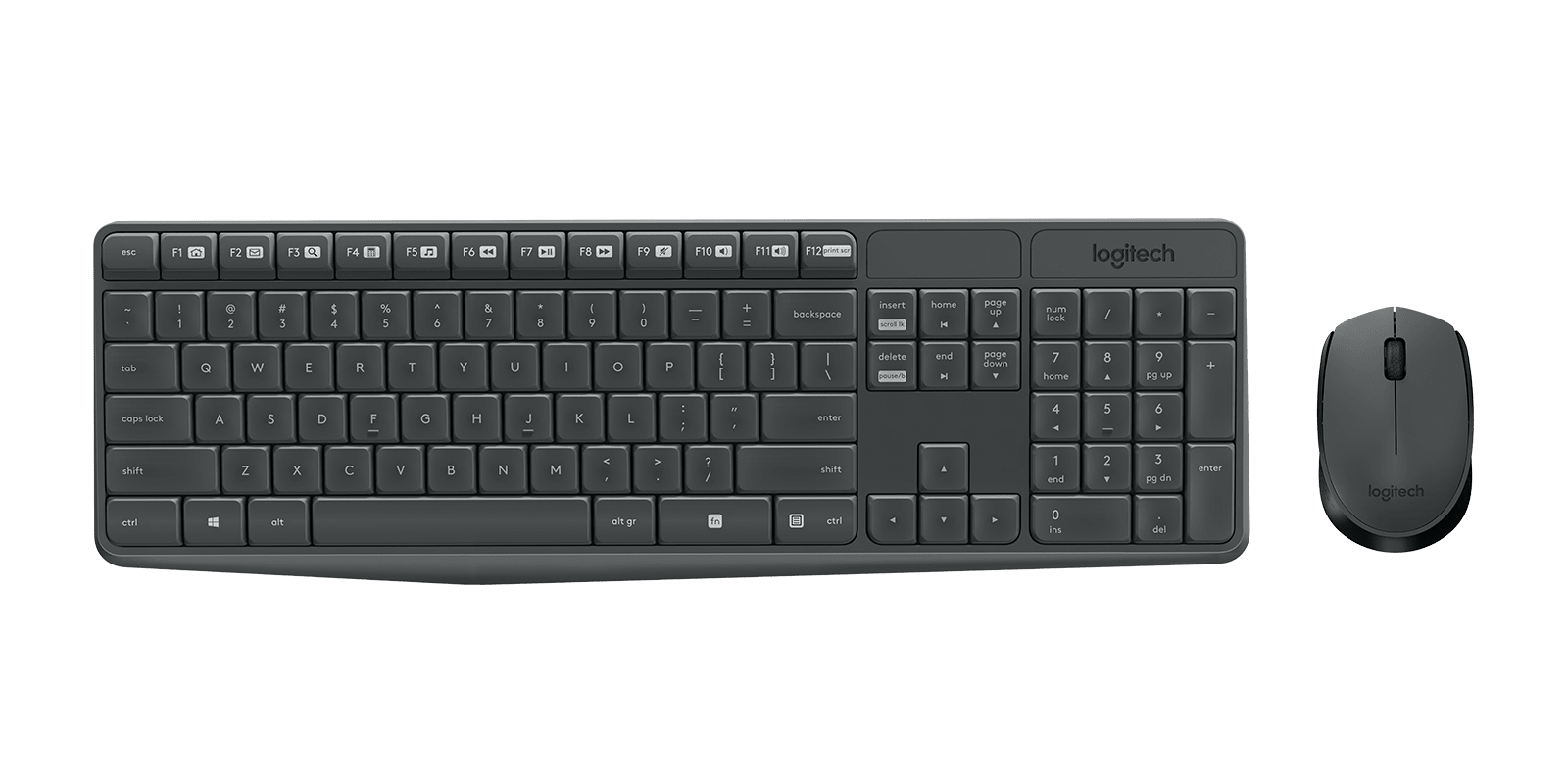
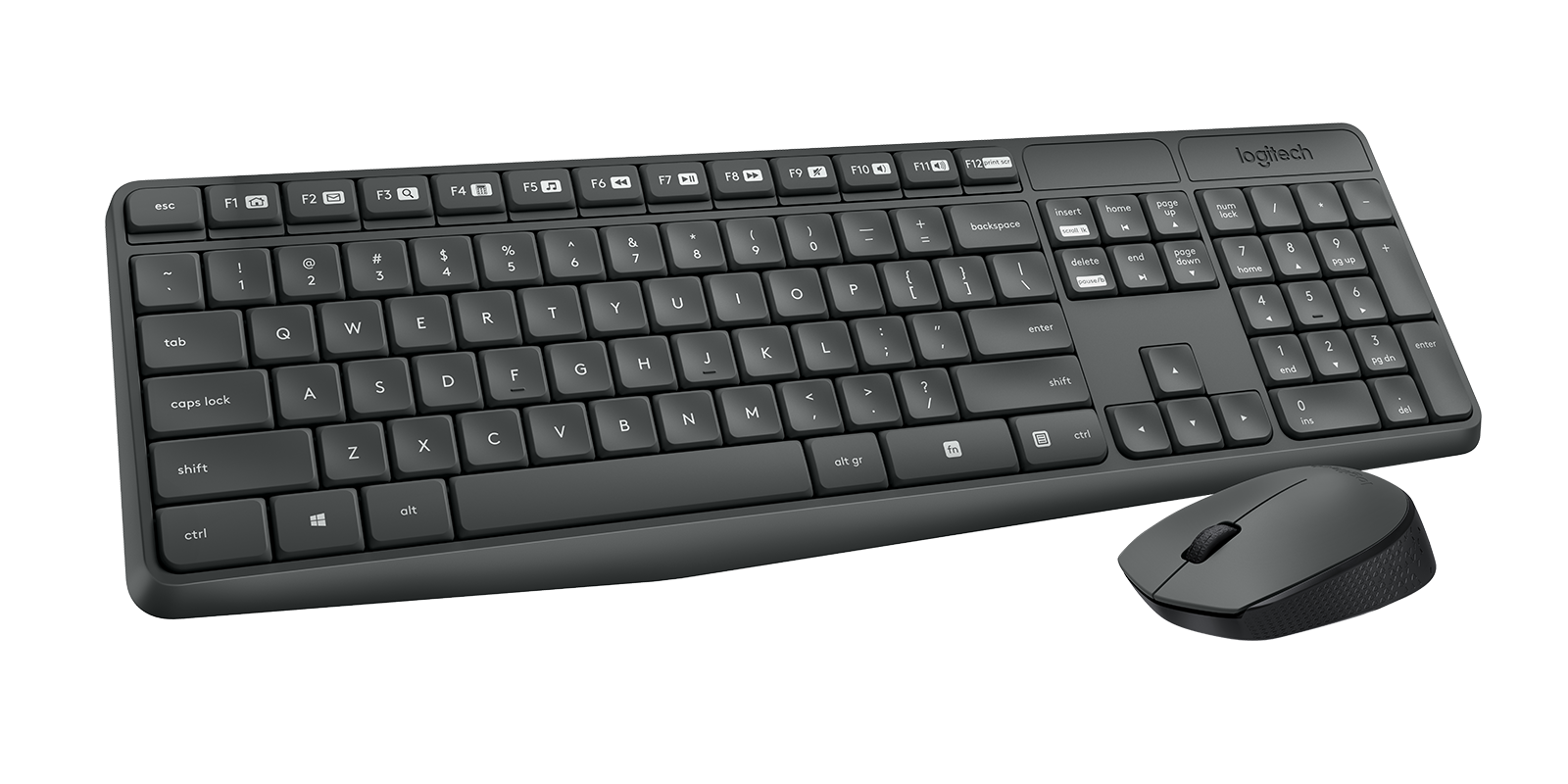
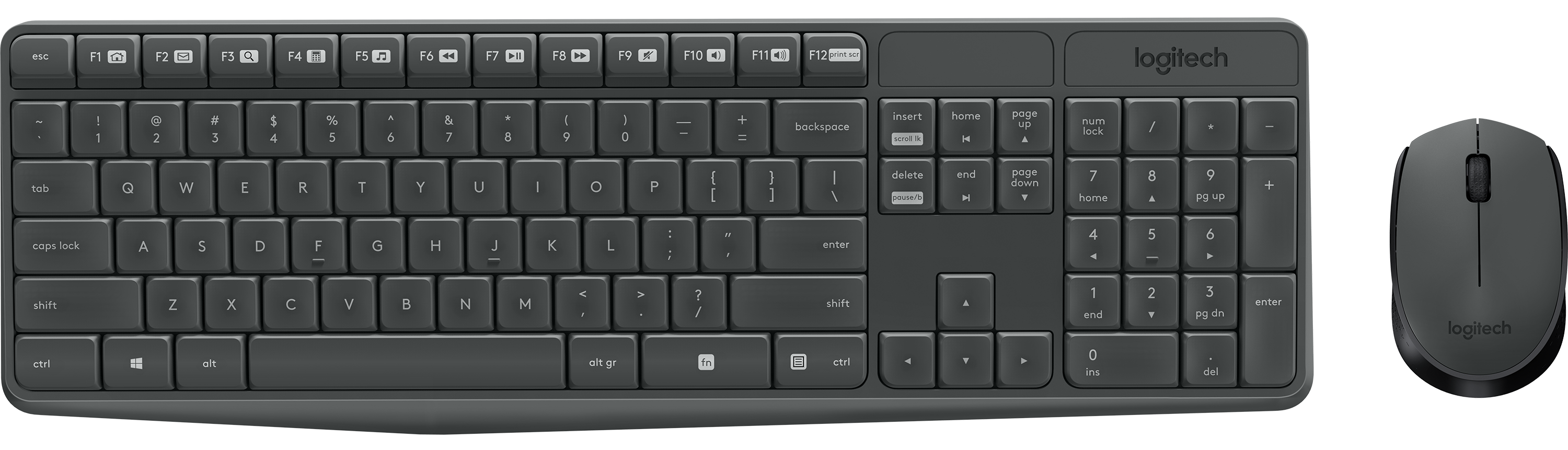
The Logitech Wireless Desktop MK235, USB, DE Manual describes a straightforward, durable keyboard-and-mouse combo designed for everyday work. With its German-layout keyboard and compact wireless mouse, the MK235 focuses on essential comfort, dependable connectivity, and long battery life, all through a single USB nano receiver. It’s built for plug-and-play simplicity—connect the receiver, power on, and you’re ready.
Smart Shortcuts and Comfortable Typing
The keyboard offers familiar full-size typing with a number pad and a set of Fn-enabled hotkeys. Quickly launch your browser, email, and search, or control media with play/pause, forward/back, mute, and volume keys. Utility shortcuts like calculator, print screen, scroll lock, pause/break, and menu help streamline routine tasks without extra software.
Compact Mouse, Smooth Navigation
The wireless mouse features responsive left/right buttons and a precise scroll wheel that doubles as a middle click. A convenient on/off slider helps preserve battery life, while the battery door offers quick access. The nano receiver docks neatly inside the mouse for travel, keeping your desk uncluttered and your setup portable.
Easy Setup and Troubleshooting
Setup is designed to be effortless: insert batteries, plug in the USB receiver, and switch on. If you experience issues, simple checks—battery orientation, moving the receiver closer, avoiding USB hubs, removing metal obstructions, trying a different surface, or restarting—usually resolve them. For persistent pairing problems, Logitech’s Reconnection Utility can help re-establish the link quickly.
Built to Last, Ready for Work
The MK235 emphasizes durability and minimal maintenance, making it a practical choice for home offices, classrooms, and shared workspaces. With long-lasting batteries and stable wireless performance, it keeps you focused on tasks rather than tech.
Notes:
- Keyword focus: Logitech Wireless Desktop MK235, USB, DE Manual
- Hotkeys require Fn combinations on the keyboard
- Middle-click behavior may vary by application
Search for 1 Mio. Manuals online


Type-in Brand or Model