
Lenovo ThinkPad Hybrid USB-C with USB-A Dock (40AF), USB-C 3.1 [Socket] Manual
PDF manual · 25 Pages
English



Advantages and Disadvantages
Advantages

- Single-cable docking with power delivery and USB-C/USB-A compatibility for flexible host connections.
- Supports up to two external displays with up to 5120×2880 @60Hz (with proper host and cables).
- Multiple USB 3.1 Gen 2 ports and an Always On USB port provide fast data transfer and charging.
- Gigabit Ethernet with Wake on LAN and MAC pass-through for enterprise network management.
- Compact, portable design with a security-lock slot for physical protection.
Disadvantages

- Requires external AC adapter; dock cannot rely solely on host power in all configurations.
- Video outputs in the same group (DP/HDMI pairs) cannot be used simultaneously, limiting some multi-monitor setups.
- Does not support HDCP-protected content playback via dock video outputs.
- Some features depend on driver installation and host compatibility; older systems may need updates.
- Always On USB charging may be limited for some devices and can be slower while connected to the host.
Ask a Question
Frequently Asked Questions
The dock is supported on Microsoft Windows 7 and Windows 10. For full functionality and the latest fixes, download and install the current dock drivers from Lenovo’s support page for the product.
Is this answer helpful?
Yes — when connected to a USB-C port on a compatible laptop using the supplied USB-C cable, the dock can supply power to the computer. If you use the USB-A converter, the dock will not supply power to the laptop.
Is this answer helpful?
The dock supports up to two external displays. Supported maximums include 5120×2880 @60Hz for a single display using both DisplayPorts and 4096×2160 @60Hz or various dual 4K combinations depending on which DP/HDMI connectors are used and the host’s capabilities.
Is this answer helpful?
The dock does not support High-bandwidth Digital Content Protection (HDCP) for video output. For protected content playback, connect the external display directly to a compatible video output on your computer rather than through the dock.
Is this answer helpful?
Check that the computer is awake and running Windows, verify all power and data connections, ensure drivers are installed, and confirm you’re not exceeding two displays. If needed, reinstall the dock drivers and reconnect cables.
Is this answer helpful?
After connecting the dock, open the Windows sound settings (Playback/Recording devices), select the dock’s audio device as Default for playback or recording, and restart any applications using audio to apply changes.
Is this answer helpful?
Yes, the Always On USB 3.1 Gen 2 port can provide charging (up to 2.4 A) even when the computer is off, though charging behavior and speed may vary and some devices charge faster when the dock is disconnected from the host.
Is this answer helpful?
Product Description
Lenovo ThinkPad Hybrid USB-C with USB-A Dock (40AF), USB-C 3.1 [Socket] Manual
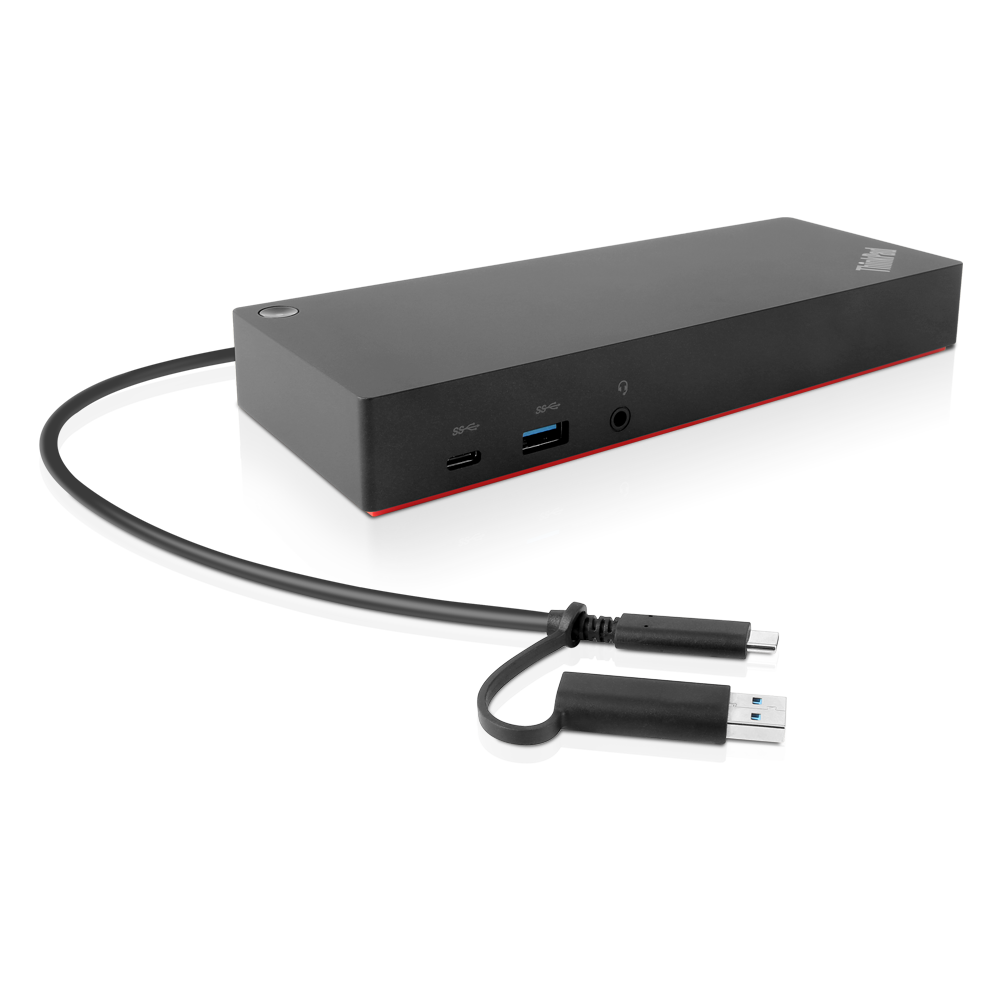
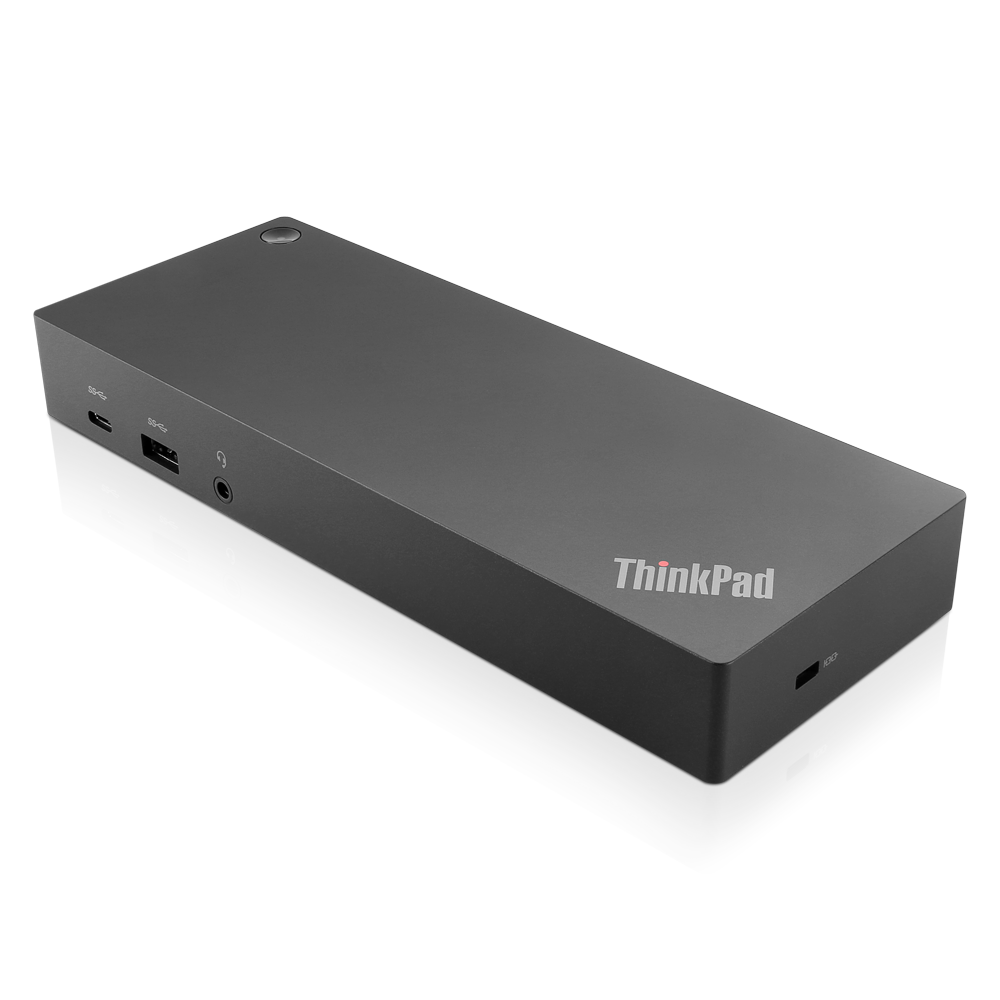
The Lenovo ThinkPad Hybrid USB-C with USB-A Dock (40AF) is a compact, versatile docking station designed to expand connectivity for compatible laptops and devices. Built to support both USB-C and USB-A hosts, the dock combines power delivery, multiple video outputs, Ethernet, audio, and high-speed USB ports to transform a portable laptop into a full desktop-style workstation.
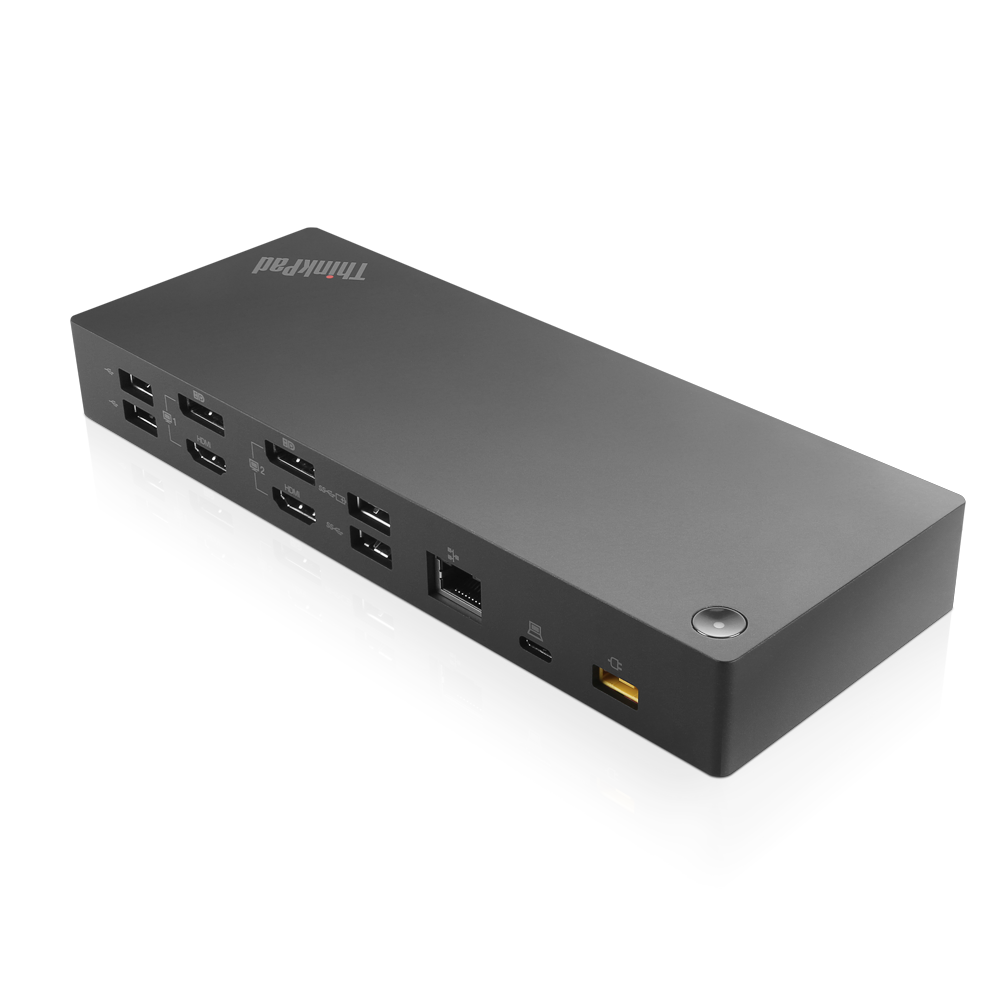
Featuring DisplayPort and HDMI outputs, the dock supports up to two external displays with high resolutions — including single-display 5K (5120×2880 @60Hz) or dual 4K configurations depending on the connector combinations and host capabilities. Multiple USB 3.1 Gen 2 ports provide fast data transfer and charging, while an Always On USB 3.1 port enables device charging even when the computer is off. The integrated Ethernet port supports gigabit networks and management features such as Wake on LAN and MAC address pass-through for enterprise environments.
Setup is straightforward: connect the included AC adapter, link the dock to your computer via the supplied USB-C cable (or USB-A converter), install the DisplayLink and dock drivers if needed, and configure displays and audio through Windows settings. The dock’s power button doubles as a computer power control when attached via USB-C, and the LED indicator conveys dock and system status at a glance. Security is addressed via a standard lock slot for cable locks.
Lenovo provides broad OS support for common Windows environments and offers driver downloads and compatibility lists on its support site. The product includes practical guidance on choosing which ports to use for peripherals (recommendations to use USB 2.0 for wireless dongles, and USB 3.1 Gen 2 for high-bandwidth devices), troubleshooting steps for common video, audio, and connectivity issues, and BIOS configuration tips to enable network-based management features.
Whether used in a home office or corporate setting, the ThinkPad Hybrid Dock is aimed at users who need reliable multiport expansion, stable wired networking, and flexible display options without sacrificing portability. It’s a practical accessory for professionals who move between workspaces but want the convenience of a single-cable connection to power, networks, displays, and peripherals.
Notes:
- Supports Windows 7 and Windows 10; driver installation may be required for full functionality.
- Video outputs in the same group (DP1/HDMI1 and DP2/HDMI2) cannot be used simultaneously.
- Does not support HDCP-protected playback through the dock’s video outputs.
Search for 1 Mio. Manuals online


Type-in Brand or Model