
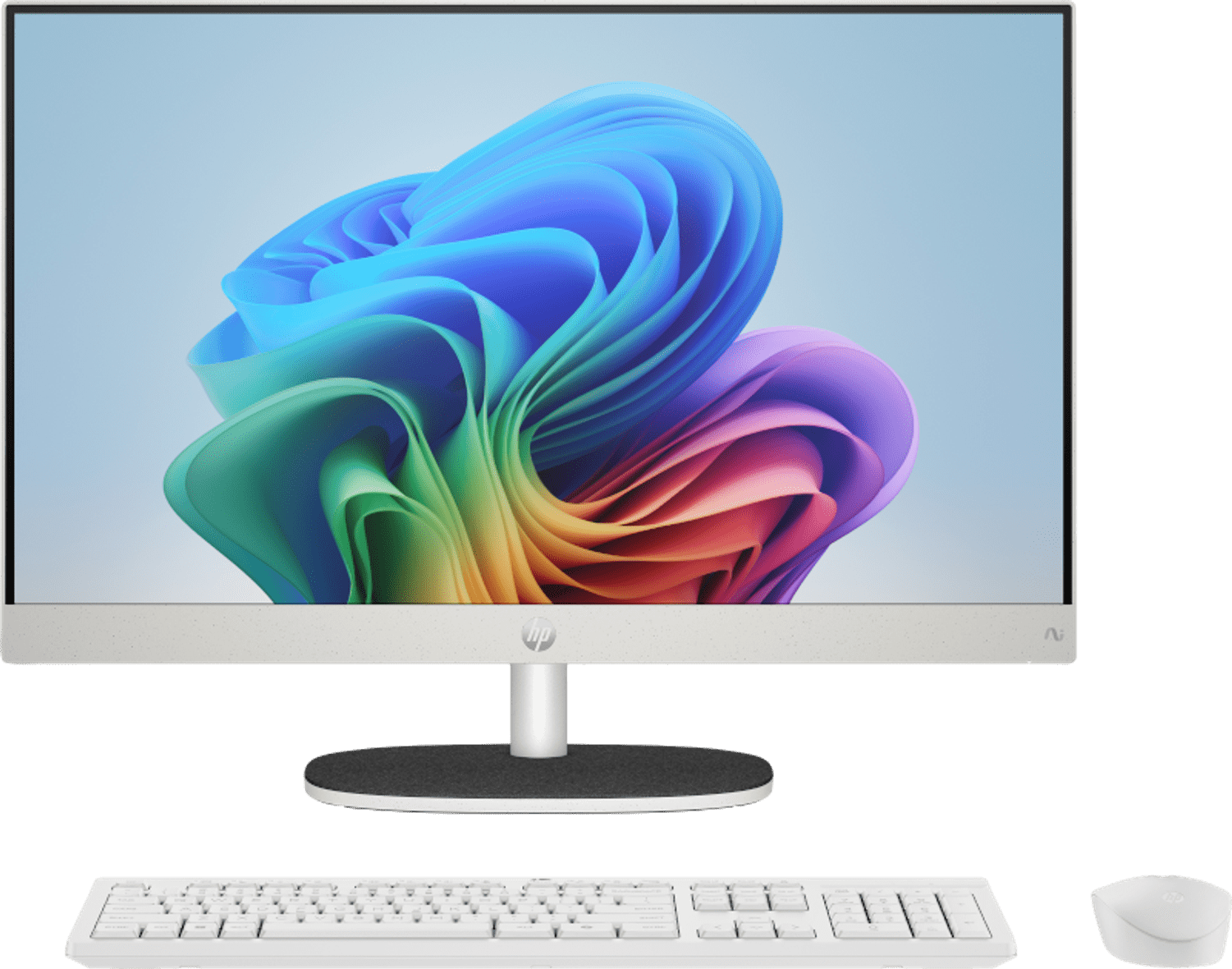
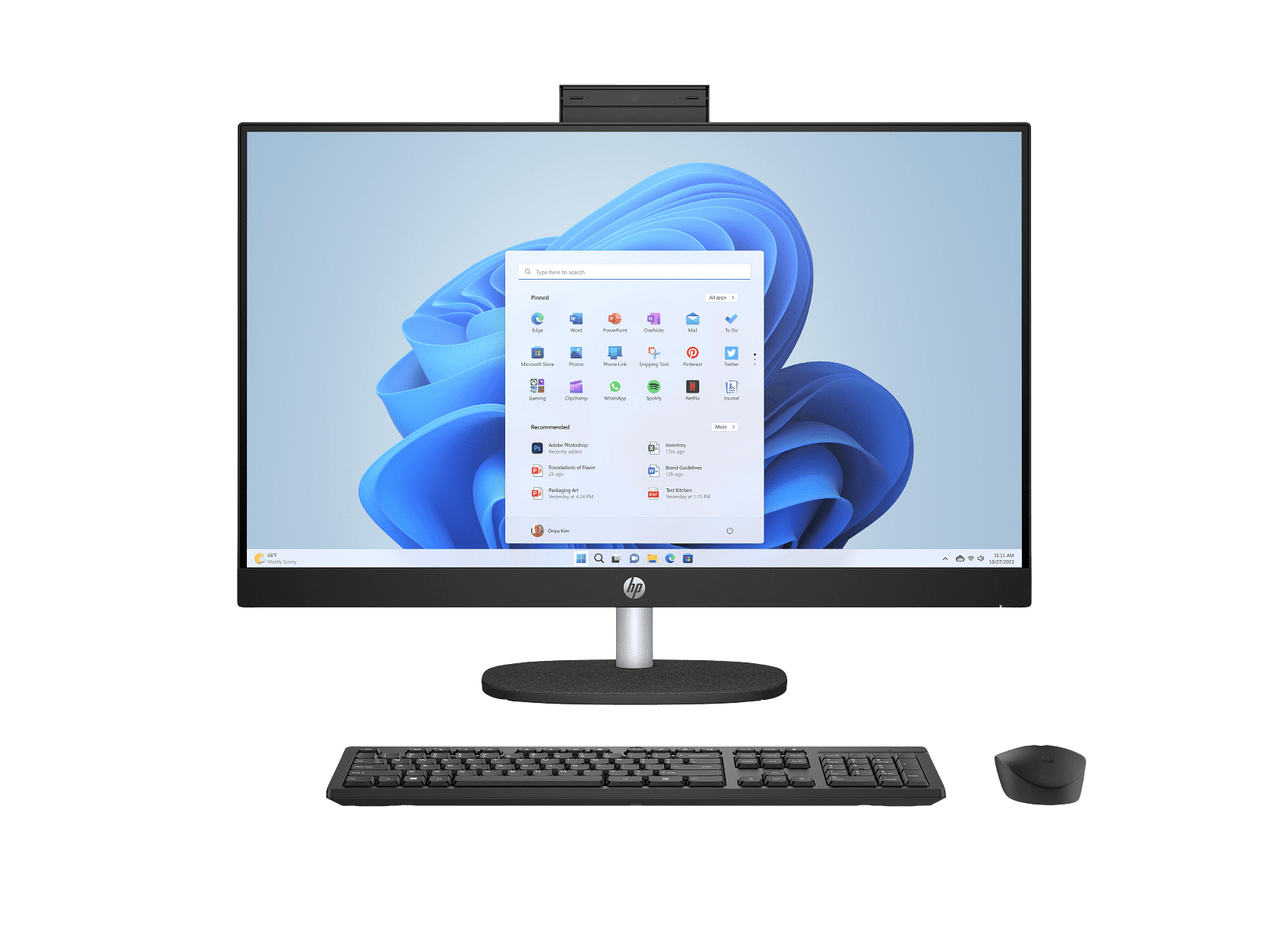
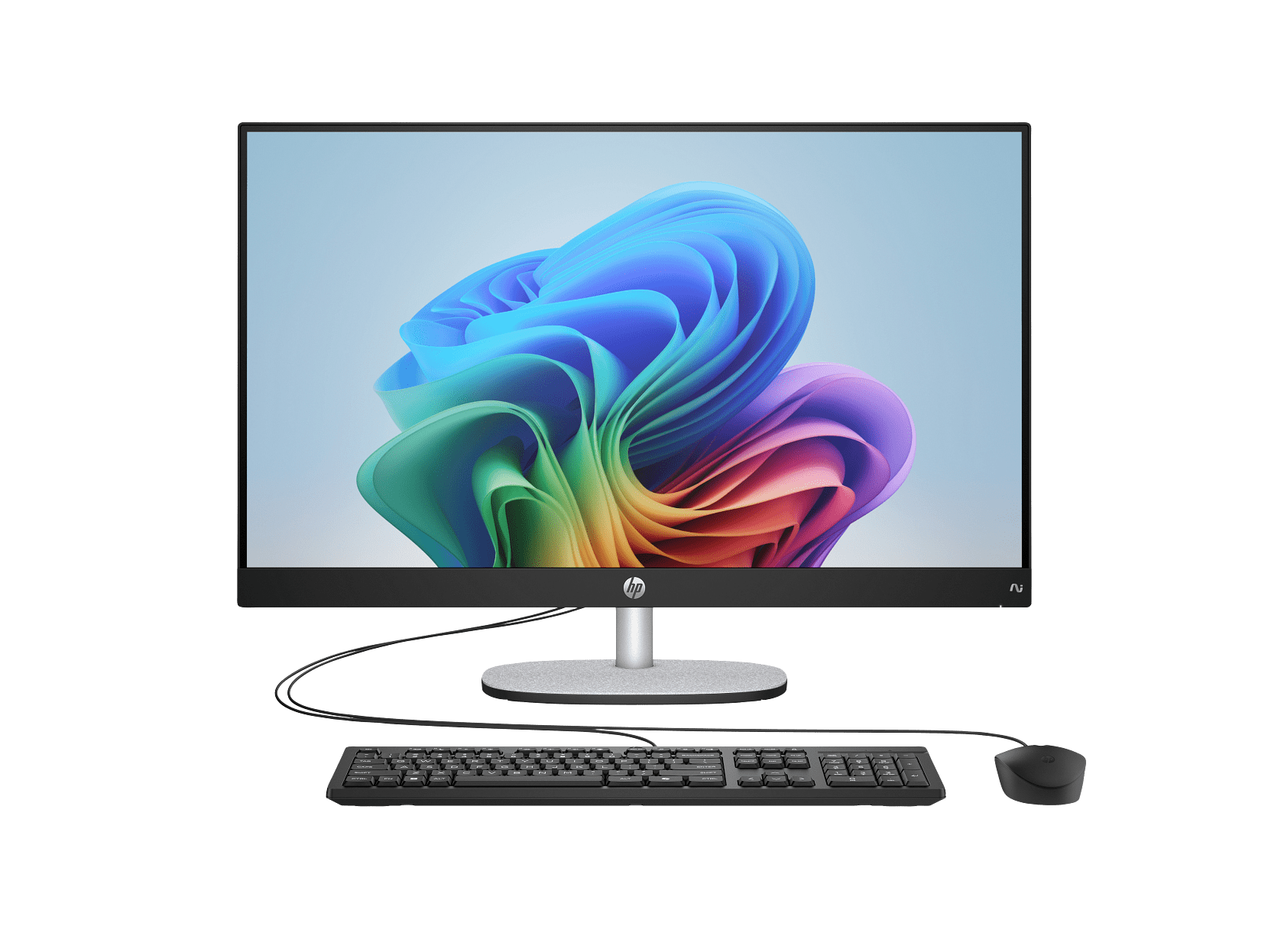
HP All-in-One 24-df0000 Manual
PDF manual · 57 Pages
English



Advantages and Disadvantages
Advantages

- Clean, space-saving design with integrated display and components
- Robust connectivity: Wi‑Fi, Bluetooth, USB‑A/USB‑C, HDMI, DP (select)
- Low Blue Light modes reduce eye strain for long sessions
- HP Support Assistant simplifies updates and maintenance
- Clear setup, safety, and troubleshooting guidance
Disadvantages

- Some features vary by configuration and may not be included
- Limited upgradeability compared to traditional desktops
- Heavy tasks may exceed entry-level CPU/GPU capabilities
- External cables/adapters may be required for certain ports
- Airflow can be impacted if placement guidelines aren’t followed
Ask a Question
Frequently Asked Questions
Everyday home and office tasks: browsing, video calls, media streaming, schoolwork, and light productivity. Its integrated design suits minimal, tidy setups.
Is this answer helpful?
Yes. Use HDMI or USB‑C with DisplayPort (select models). Press F4 to switch display modes: PC only, Duplicate, Extend, or Second screen only, then adjust resolution.
Is this answer helpful?
Enable Low Blue Light modes through HP Display Control. Choose Reading for balanced comfort, Night for lowest blue light, or TÜV-certified Low Blue Light when available.
Is this answer helpful?
Use HP Support Assistant for drivers and diagnostics, Windows Update for OS patches, and run Disk Cleanup. Keep vents clear and follow the cleaning guidelines.
Is this answer helpful?
Wi‑Fi for home and public networks, Bluetooth for peripherals, and on select models, mobile broadband and GPS. Use OS controls to manage connections.
Is this answer helpful?
Yes. USB‑A and USB‑C ports support data transfer, with Sleep and Charge on select ports to charge devices even when the PC is off.
Is this answer helpful?
User and admin passwords, Windows Hello on select models, antivirus trials, firewall, and Windows security updates to protect data and access.
Is this answer helpful?
Product Description
HP All-in-One 24-df0000 Manual: Your Streamlined Home PC Companion
A Smart, Space-Saving All-in-One
The HP All-in-One 24-df0000 blends desktop power with minimal clutter, consolidating the display and components into a single sleek unit. It’s designed for families, students, and home offices who want reliable performance, simple setup, and a clean workspace. With Windows support, multiple USB options, and easy wireless connectivity, it’s built to handle browsing, streaming, light productivity, and everyday tasks with ease.
Connectivity and Everyday Ease
Stay connected with dual-band Wi‑Fi, Bluetooth for peripherals, and optional wired LAN for stability. USB-A and USB-C ports (including SuperSpeed and Sleep and Charge on select models) make transferring files and charging devices straightforward. Connect external displays via HDMI, DisplayPort over USB‑C, or even Miracast on compatible configurations. Audio is flexible too—use speakers, headphones, or headsets, and fine-tune settings through Windows or vendor audio panels.
Built for Comfort and Safety
The HP All-in-One 24-df0000 Manual highlights features like Low Blue Light modes (Reading, Night, and TÜV-certified options) to reduce eye strain. Thoughtful guidance on setup, ventilation, and safe use helps keep the system cool and reliable. A built-in camera supports video calls and Windows Hello on select models, while action keys and hot keys simplify common tasks like volume, brightness, and display switching.
Reliability, Maintenance, and Support
HP provides straightforward tools for keeping the system fast and dependable, including HP Support Assistant for drivers and updates, plus guidance for Disk Cleanup and optimization. Troubleshooting covers startup, display, audio, and input issues, while diagnostics (Windows and UEFI) help pinpoint problems. Security features such as passwords, Windows updates, antivirus, and firewalls protect your data.
Notes
- Check your specific 24-df0000 configuration for available ports and features.
- For best results with extended displays, adjust the external monitor’s resolution after connecting.
- Keep vents clear and follow cleaning tips to maintain performance.\nNo reviews are available to analyze. There is no content to translate or summarize at this time.
Search for 1 Mio. Manuals online


Type-in Brand or Model