


Dell UD22 Universal Dock USB-C 3.1 (plug) Manual
PDF manual · 29 Pages
English


Advantages and Disadvantages
Advantages

- Single-cable docking with up to 96 W power delivery
- Supports multiple 4K displays via DP, HDMI, and USB-C
- Fast USB 3.2 Gen 2 ports with PowerShare charging
- Gigabit Ethernet with WoL and MAC pass-through
- Cross-platform support: Windows, macOS, Linux, ChromeOS
Disadvantages

- Full features require driver and firmware updates
- Best multi-display setups depend on host GPU/DSC
- Fan can become audible under heavy thermal load
- Requires 130 W AC adapter; no USB bus-powered mode
- HDCP behavior varies and is Windows/Intel dependent
Ask a Question
Frequently Asked Questions
Any laptop with a USB-C port supporting DisplayPort Alt Mode is compatible. For best multi-display performance, use systems with HBR3 and DSC. Windows, macOS, Ubuntu, and ChromeOS are supported; update BIOS and graphics drivers for stability.
Is this answer helpful?
Configurations vary by host bandwidth. With HBR3 and DSC, up to multiple 4K displays are possible across DP, HDMI, and USB-C. Exact resolutions depend on GPU, DSC, and EDID. Check system DP mode and use quality cables.
Is this answer helpful?
Yes. UD22 delivers up to 96 W to your laptop via USB-C and offers PowerShare on USB ports for phones or accessories. Adaptive power balances between displays, USB devices, and system charging for stable performance.
Is this answer helpful?
The Synaptics (DisplayLink) and system drivers ensure proper graphics, USB, and network functionality. Firmware optimizes compatibility and reliability. Install the latest BIOS, GPU, USB, Ethernet, and dock firmware before use.
Is this answer helpful?
Yes. The fan is temperature-controlled and may ramp up under load or during startup. Ensure vents are clear and ambient temps are within spec. If it overheats and shuts down, power-cycle and remove obstructions.
Is this answer helpful?
These features are supported on select Dell systems and Windows. Check your platform setup guide and BIOS settings. Ensure the Synaptics Ethernet controller is installed and WoL options are enabled.
Is this answer helpful?
Update BIOS and graphics drivers, reseat cables, select the correct monitor input, and confirm resolution limits. Power-cycle the dock (unplug USB-C and AC, then reconnect AC first), and test with known-good cables and monitors.
Is this answer helpful?
Product Description
Dell UD22 Universal Dock USB-C 3.1 Handbuch: A Versatile USB‑C Powerhouse
Streamline Your Workspace with One Cable
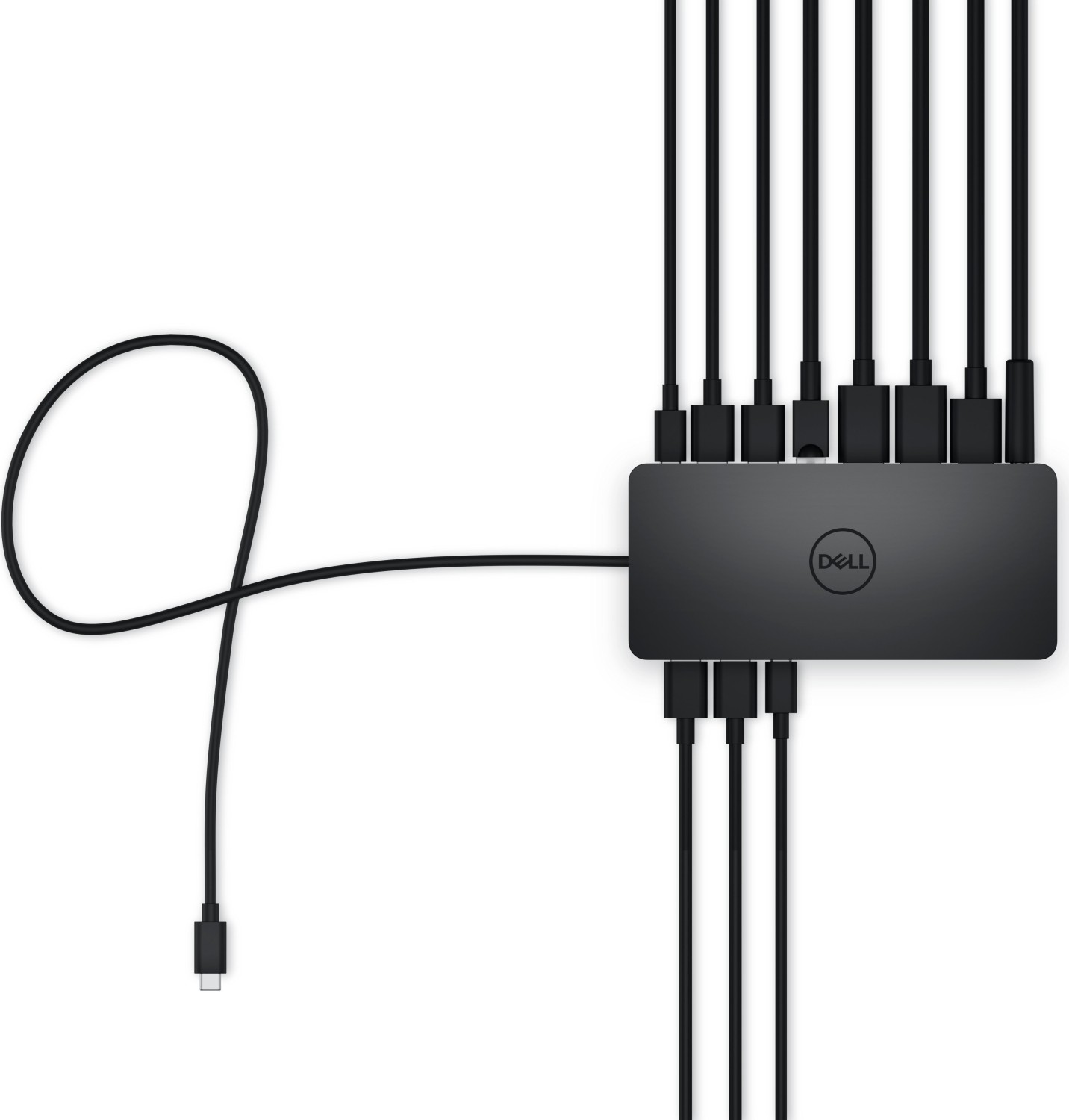
The Dell UD22 Universal Dock USB-C 3.1 (Stecker) turns your laptop into a full-featured workstation through a single USB-C connection. It consolidates peripherals—keyboards, mice, storage, Ethernet, and multiple 4K displays—so you spend less time plugging in and more time getting work done. With up to 96 W power delivery, it charges most modern notebooks while maintaining stable performance.
Ports, Performance, and Display Mastery
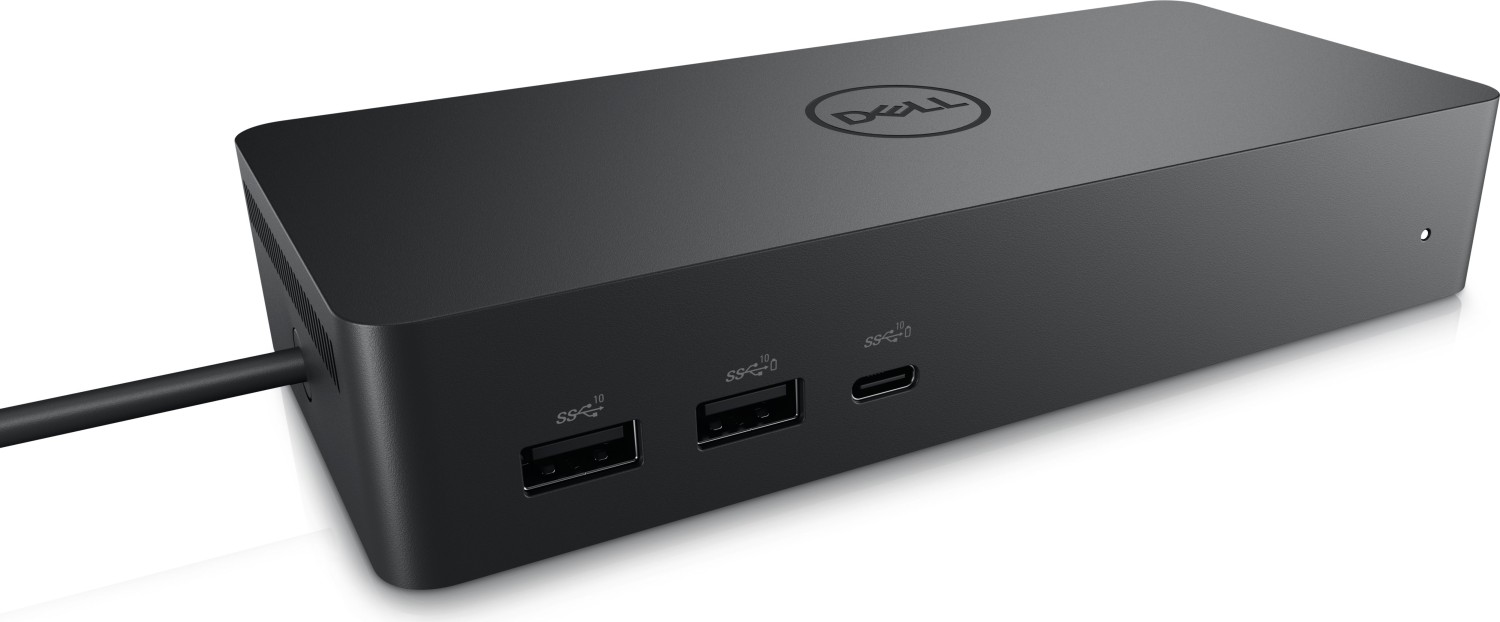
Designed for high-throughput workflows, UD22 includes two DisplayPort++ 1.2, HDMI 2.0, RJ45 Gigabit Ethernet, multiple USB 3.2 Gen 2 ports, and two USB-C (front PowerShare and rear with DP 1.4 Alt Mode). It supports advanced display configurations, up to four 4K displays depending on system bandwidth and DSC support. Whether you’re editing, coding, or trading, the dock delivers crisp visuals and reliable connectivity.
Smart Power and Cross‑Platform Support
Smart and Adaptive Power Delivery balances dock and device power needs, dynamically allocating up to 96 W to your laptop. The 130 W AC adapter ensures consistent power for busy USB devices and multiple monitors. UD22 works across Windows, macOS, Linux (Ubuntu recommended), and ChromeOS, making it ideal for mixed-device environments.
Reliability Backed by Pro-Grade Features
Enterprise features include Wake-on-LAN and MAC Address Pass-Through (select Dell systems), VESA mounting for clutter-free setups, and clear LED indicators for quick status checks. Keep performance optimal by updating system BIOS, graphics, and the Synaptics (DisplayLink) drivers. Dell’s firmware update utility helps maintain compatibility and stability over time.
Notes
- For best multi-monitor performance, use systems with USB-C DP Alt Mode HBR3 and DSC.
- Update BIOS, graphics, Ethernet, and USB drivers before first use.
- Ensure proper ventilation; the adaptive fan ramps with workload and temperature.
Search for 1 Mio. Manuals online


Type-in Brand or Model