

Dell Thunderbolt Dock WD22TB4 180W Thunderbolt 4 [Plug] Manual
PDF manual · 38 Pages
English



Advantages and Disadvantages
Advantages

- Single-cable Thunderbolt 4 connectivity with up to 130W power delivery
- Supports up to four external displays with DP 1.4, HDMI 2.0, and TB4
- Modular, serviceable USB-C cable module and WD19 upgrade path
- Enterprise features: WoL, MAC pass-through, BIOS port control
- Fast charging with ExpressCharge and clear LED diagnostics
Disadvantages

- HDMI and rear USB-C DP Alt Mode cannot run simultaneously
- Full display support depends on host GPU, drivers, and OS
- Requires 180W adapter; non-Dell hosts receive up to 90W
- Advanced features need BIOS configuration and firmware updates
- No operation on system power alone after AC power loss
Ask a Question
Frequently Asked Questions
Thunderbolt 4 laptops offer the widest capabilities. USB-C systems with DisplayPort Alt Mode are supported but may have reduced display limits. Update BIOS, graphics, Thunderbolt, and network drivers for optimal performance.
Is this answer helpful?
Up to four external displays, depending on host bandwidth and GPU. Thunderbolt systems can achieve multiple 4K60 configurations; non-Thunderbolt hosts may be limited. Check DP 1.4/HBR3/DSC support and monitor EDIDs.
Is this answer helpful?
Yes. It delivers up to 130W to compatible Dell systems and up to 90W to non-Dell hosts. USB ports support device charging, and ExpressCharge modes accelerate battery recovery on supported systems.
Is this answer helpful?
Those two ports are toggled and share resources, so only one can be active for video at a time. Choose either HDMI 2.0 or the rear USB-C DP Alt Mode based on your display setup.
Is this answer helpful?
Disconnect the dock’s AC adapter, wait a few seconds, reconnect power, then reattach the host. The dock requires AC to renegotiate power and re-establish the EC-to-EC connection.
Is this answer helpful?
Yes. Certain WD19 variants support the WD22TB4 cable module. Update firmware before and after the swap and ensure a 180W adapter is used to enable full functionality.
Is this answer helpful?
Use Dell’s Firmware Update Utility or enterprise tools. Connect the dock, run the utility as admin, and avoid disconnecting power during the process. Reboot if prompted.
Is this answer helpful?
Product Description

Dell Thunderbolt Dock WD22TB4 180W Thunderbolt 4 [Plug] Manual
Streamline Your Desk, Supercharge Your Workflow
The Dell Thunderbolt Dock WD22TB4 180W Thunderbolt 4 [Plug] Manual-inspired overview highlights a modular, performance-ready dock built to power serious multi-display setups and fast data workflows. With Thunderbolt 4 connectivity, you can link your laptop to monitors, storage, and networks through a single cable—and expand further with versatile ports.
Power, Ports, and Performance
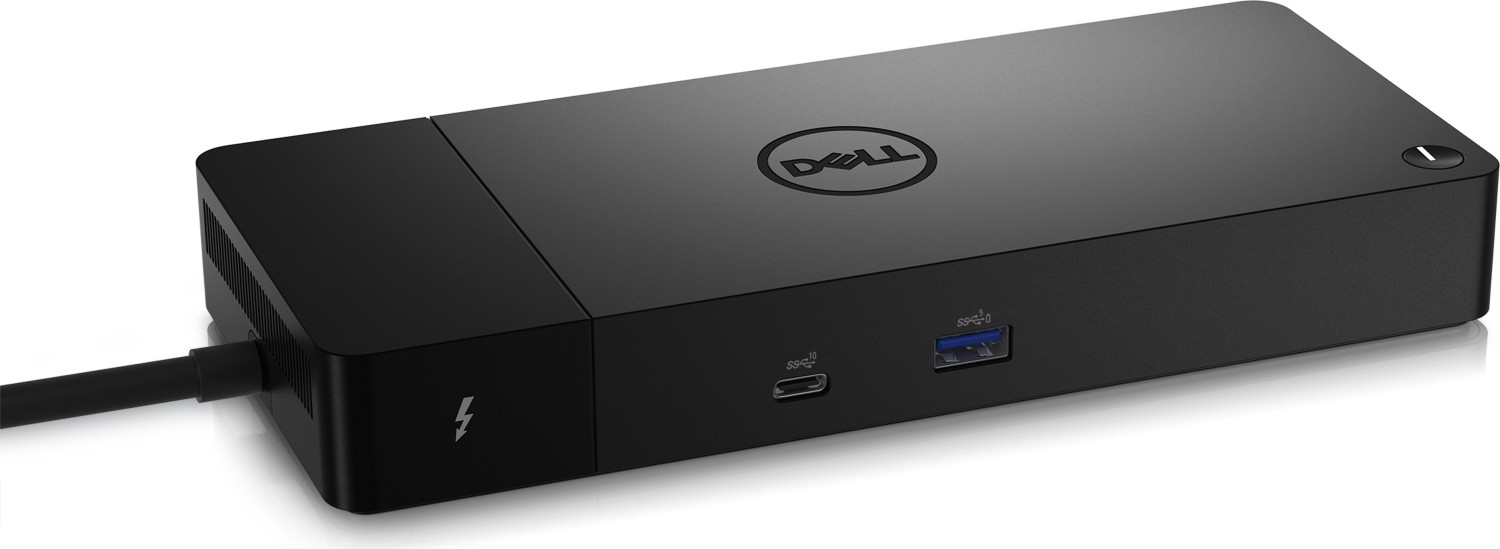
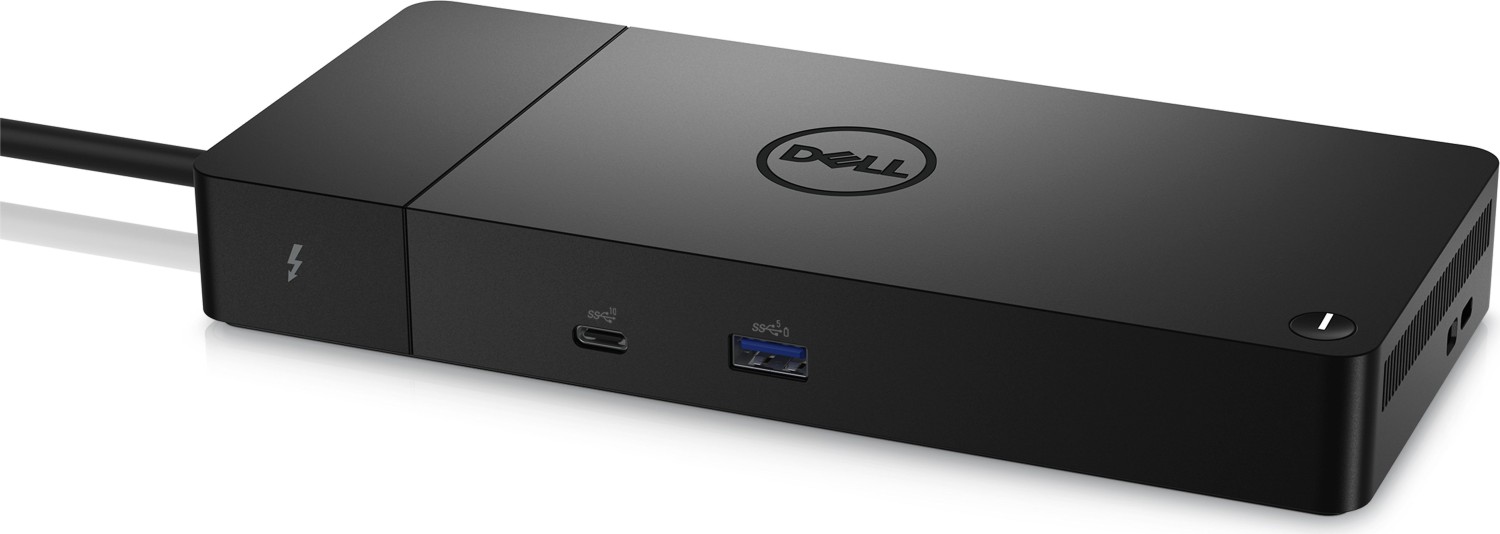
This dock supports up to four external displays depending on your system, offering DisplayPort 1.4, HDMI 2.0, Thunderbolt 4 Type-C, and USB-C with DP Alt Mode. It’s ideal for creators, analysts, and power users who demand crisp 4K or dense multi-monitor arrays. Gigabit Ethernet ensures stable wired networking, while multiple USB 3.2 ports (Type-A and Type-C) deliver high-speed peripherals and device charging.
Backed by a 180W AC adapter, the dock can deliver up to 130W to compatible Dell systems and up to 90W to non-Dell laptops. The top-mounted button mirrors the host power button on supported Dell machines, enabling convenient system control right from your desk.
Smarter Power and Management
Dell ExpressCharge and ExpressCharge Boost help you recover battery fast when paired with supported systems and BIOS settings. LED indicators on the power adapter, dock, cable, and RJ-45 provide quick diagnostics. Administrators can manage firmware updates, apply BIOS-driven port disablement, and leverage MAC Address Pass-Through and Wake-on-LAN on select platforms.
Modular By Design
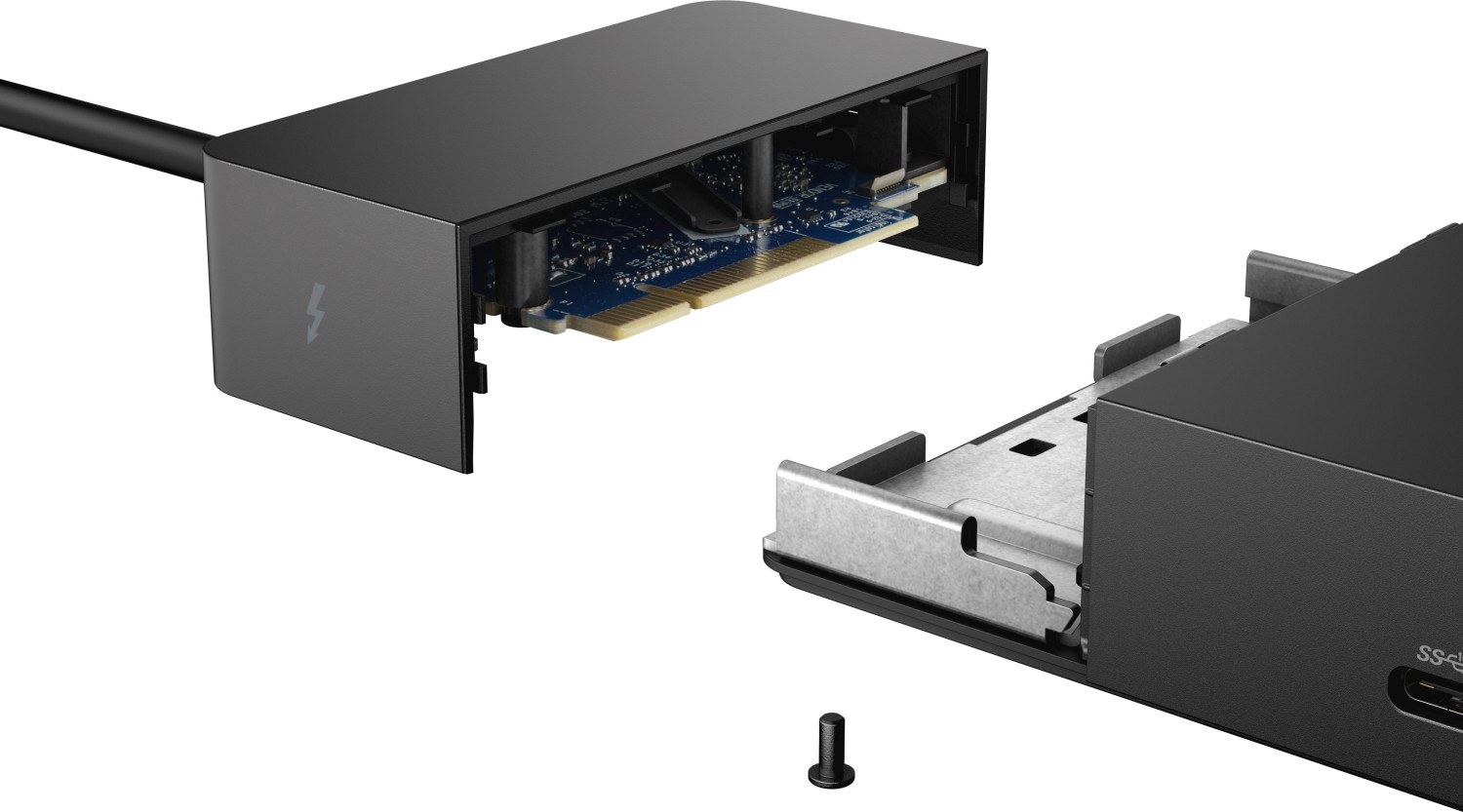
The WD22TB4 features a serviceable USB-C cable module, making maintenance and upgrades straightforward. Select WD19-family docks can be upgraded to the Thunderbolt 4 cable module, provided firmware and power requirements are met—useful for standardizing fleets.
Setup Tips
For best results, update your system BIOS, graphics, Thunderbolt, and network drivers before connecting. Configure display layouts in your OS and confirm bandwidth requirements for higher resolutions. If issues arise, power-cycle the dock, verify cables, and ensure your host supports the required protocols.
Notes
- HDMI and rear USB-C DP Alt Mode ports are toggled—use one at a time.
- Display support depends on GPU, OS, and monitor EDID.
- Linux may enumerate displays differently than Windows.
Search for 1 Mio. Manuals online


Type-in Brand or Model